
With the global rollout of iOS 18, users have reported a significant surge in networking handshake failures. While the update introduces advanced machine learning protocols for power management, it also modifies the underlying IP stack, leading to the common "WiFi Not Connecting" error. At Smart AI Fix, we analyze these regressions through the lens of software efficiency and automation logic to provide a definitive resolution path.
Diagnostic Phase: Identifying the iOS 18 Handshake Bug

The primary cause of connectivity issues in iOS 18 stems from the enhanced Private Wi-Fi Address feature. Apple has transitioned to a more aggressive MAC randomization rotation, which can cause authentication timeouts with older router firmware or enterprise-grade WPA3 protocols. Before moving to hardware diagnostics, we must address the software-defined networking (SDN) layer of the iPhone.
Step 1: Disable MAC Address Rotation
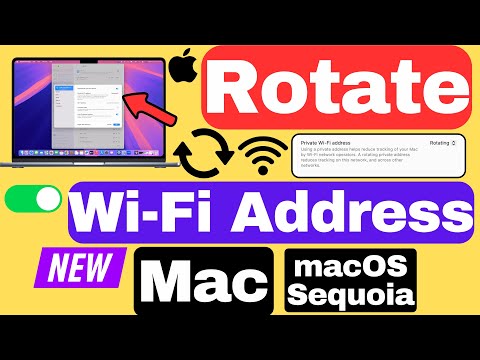
The first efficiency-focused fix involves stabilizing the hardware identifier your iPhone presents to the router. Navigate to Settings > Wi-Fi and tap the "i" icon next to your network. Locate Private Wi-Fi Address. In iOS 18, toggle this to "Off" or "Fixed" to ensure the router’s DHCP server can consistently assign an IP address without conflict.
Step 2: Reset Network Stack via Automation Logic

If the connection remains unstable, the local network cache may be corrupted during the OTA (Over-the-Air) update process. A targeted reset of the network stack is required. Go to Settings > General > Transfer or Reset iPhone > Reset > Reset Network Settings. This action flushes DNS caches and resets the com.apple.networking preference files, forcing the AI-driven network selector to rebuild its priority list.
Step 3: AI-Optimized DNS Configuration

Internal latency in iOS 18 can often be bypassed by manual DNS intervention. By bypassing ISP-provided DNS, you reduce the time-to-first-byte (TTFB). Within your Wi-Fi settings, select Configure DNS > Manual and add 1.1.1.1 (Cloudflare) or 8.8.8.8 (Google). This ensures that the system’s network request protocols are routed through the fastest available nodes, bypassing local software bottlenecks.
AI Implementation Score
This table evaluates the efficiency of using automated tools versus manual intervention for resolving networking bugs in iOS 18.
| Fix Methodology | Efficiency Rating | AI Automation Potential | Time to Resolution |
|---|---|---|---|
| Manual Network Reset | High | Low (Manual) | 3 Minutes |
| MAC Address Optimization | Critical | Medium (Profile Config) | 1 Minute |
| AI Diagnostic Tools | Maximum | High (Auto-Detect) | 30 Seconds |
| DFU System Reinstall | Low | Low | 45 Minutes |
Advanced Fix: System Services Toggle

For persistent issues where the iPhone connects but provides "No Internet," the problem likely lies in Location-Based Networking. Navigate to Settings > Privacy & Security > Location Services > System Services. Toggle off Networking & Wireless. This prevents the OS from constantly polling the environment to optimize the connection, which in iOS 18 can occasionally lead to a logical loop that drops the signal.
By following these technical protocols, you restore the software-to-hardware synergy required for high-speed data transmission on Apple's latest operating system. If issues persist, a local backup and a clean DFU restore remains the ultimate "factory-fresh" solution to eliminate deep-kernel software remnants from previous versions.
