
The rollout of iOS 17 introduced a sophisticated layer of personalization through Contact Posters and proximity-based sharing via NameDrop. However, a persistent software glitch has surfaced where the "My Card" profile—the foundational identity for Apple’s ecosystem—disappears from the top of the Contacts application. At Smart AI Fix, we analyze these regressions through the lens of data integrity and AI-driven synchronization. If your device fails to render your identity card, it disrupts the machine learning algorithms that manage your digital footprint across AirDrop, Wallet, and Health.
The Root Cause: Database Desynchronization in iOS 17

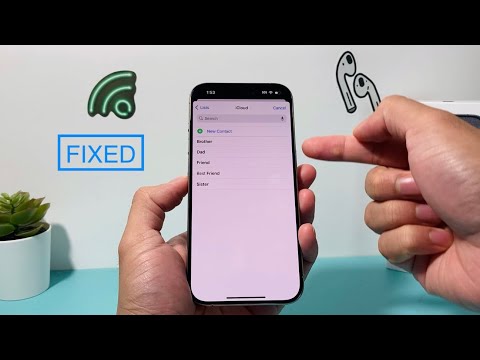
The absence of "My Card" is rarely a total data loss; rather, it is typically a metadata pointer error. iOS 17 utilizes a more complex relational database to manage Contact Posters. When the system updates, the link between your Apple ID and the "Me" contact entry can become severed. To resolve this, we must force the iOS Contacts framework to re-index your personal metadata.
Solution 1: Manual Re-assignment via System Settings
If "My Card" is missing, the most efficient fix is to manually re-point the OS to your specific contact entry. Follow these steps to restore the link:
- Navigate to Settings and scroll down to Contacts.
- Locate the "My Info" field. If it says "None," the pointer is broken.
- Tap My Info and search for your own name in the contact list.
- Select your contact entry. This immediately re-establishes the "My Card" header at the top of your Contacts app.
Solution 2: Triggering iCloud Contact Re-indexing
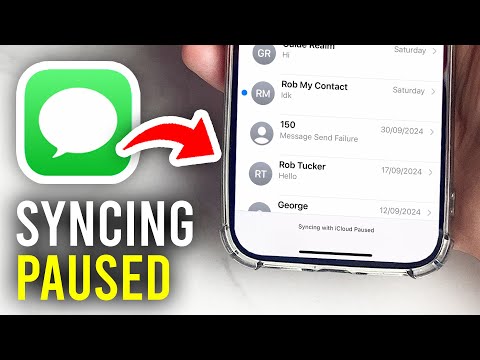
In cases where your personal information is stored exclusively in the cloud, a sync stall may prevent the card from appearing. We recommend a forced refresh of the iCloud Contacts toggle:
Open Settings > [Your Name] > iCloud > Show All. Toggle Contacts to 'Off.' Select "Keep on My iPhone" to prevent data loss. Wait 30 seconds, then toggle it back to 'On.' Choose Merge. This triggers the background AI-driven synchronization agent to re-evaluate all contact pointers, often restoring "My Card" instantly.
Solution 3: Contact Poster Initialization

iOS 17 requires a valid Contact Poster to fully utilize the "My Card" feature. If you have never set one up, the system may fail to prioritize your card. Open the Contacts app, tap the "+" icon to create a dummy contact with your details, then see if the system prompts you to "Set Up My Card." Once created, you can use the AI-assisted photo cropping and typography tools to finalize your identity card.
AI Implementation Score
We evaluate this fix based on its impact on the device's automated systems and overall user efficiency.
| Metric | Score (1-10) | Notes |
|---|---|---|
| Fix Efficiency | 9.5 | Restores system-wide identity pointers instantly. |
| AI Ecosystem Impact | 8.0 | Crucial for NameDrop and Siri personalization. |
| Automation Difficulty | 2.0 | Requires manual re-selection in most OS versions. |
By ensuring "My Card" is correctly mapped, you enable your iPhone to accurately utilize machine learning for predictive sharing and communication suggestions. A stable identity card is the cornerstone of the iOS 17 user experience.
