
To silence incoming cellular and FaceTime calls on an iPad, users must address the underlying synchronization logic of the Apple ecosystem. While the integration between iPhone and iPad is designed for seamless continuity, it often creates digital friction for professionals seeking a focused environment. Disabling these alerts requires a strategic adjustment of iCloud handoff settings and FaceTime protocols.
Disabling iPhone Cellular Calls on iPad
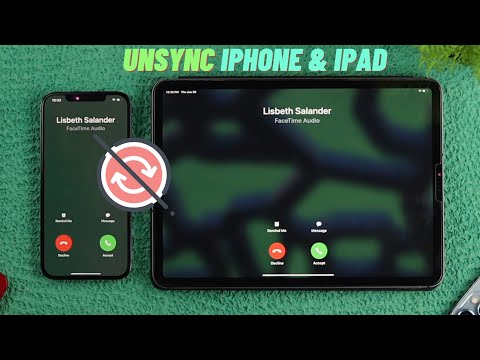
The primary reason an iPad rings is the "Calls on Other Devices" feature, which leverages your local Wi-Fi network to bridge cellular data from your iPhone to your tablet. To terminate this bridge, follow these steps:
1. Open the Settings app on your iPad.
2. Navigate to FaceTime.
3. Locate the "Calls from iPhone" toggle and switch it to the OFF position.
Alternatively, if you wish to prevent your iPhone from broadcasting calls to any of your secondary devices (including Macs or other iPads), you can manage this from the source. On your iPhone, go to Settings > Phone > Calls on Other Devices and disable the specific iPad or turn off the feature entirely to optimize your notification flow.
Deactivating FaceTime Audio and Video Calls
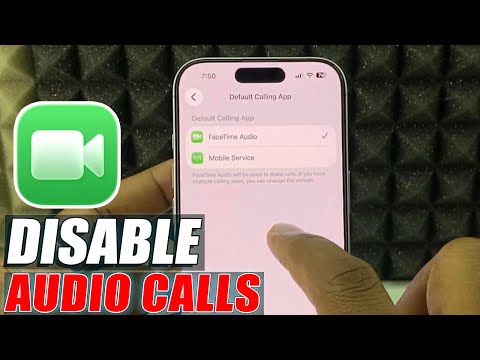
If you wish to stop receiving native FaceTime calls that are tied directly to your Apple ID, a more granular approach is required. You can either sign out of the service or restrict the reachable addresses.
Within Settings > FaceTime, you can toggle the main FaceTime switch to OFF. However, if you still want to initiate calls but not receive them, look under the "You can be reached by FaceTime at" section. Unchecking your phone number and email addresses will effectively prevent incoming requests from reaching the device.
Leveraging Focus Modes for Automated Silencing

For users who prefer an automated, AI-driven approach to productivity, Focus Modes provide a sophisticated software solution. Instead of manually toggling switches, you can program your iPad to silence calls based on your location, the app you are currently using, or a specific time of day.
By navigating to Settings > Focus > Do Not Disturb (or a custom Work focus), you can ensure that People notifications are set to "Silence Notifications From". This utilizes on-device intelligence to suppress interruptions while you are engaged in high-concentration tasks.
AI Implementation Score
The following table evaluates the efficiency of these methods in the context of modern software automation and ecosystem management.
| Metric | Score (1-10) | Technical Reasoning |
|---|---|---|
| Efficiency | 9/10 | Changes propagate instantly across the iCloud account. |
| Software Integration | 10/10 | Native OS features require no third-party overhead. |
| Automation Potential | 8/10 | Focus Filters allow for context-aware call management. |
| User Control | 9/10 | Granular control over specific phone numbers and IDs. |
By implementing these adjustments, you transition your iPad from a redundant communication hub into a streamlined productivity tool. Managing these digital touchpoints is essential for maintaining high-level software efficiency and reducing cognitive load.
