
When the Reminders app on your iPhone or iPad fails to sync or function correctly, it disrupts the seamless integration between your digital assistant and your daily automation workflows. For power users leveraging Siri or Shortcuts to manage high-velocity tasks, a synchronization lag is more than a minor bug—it is a system-wide bottleneck. This guide outlines the technical protocols to restore data integrity and ensure real-time updates across the Apple ecosystem.
1. Verify iCloud Synchronization Status
The most common cause of syncing failure is a configuration error within the iCloud settings. To ensure your local database is communicating with the cloud server, navigate to Settings > [Your Name] > iCloud. Tap on "Show All" and ensure the toggle for Reminders is enabled. If it is already on, toggle it off, choose "Delete from My iPhone" (data remains in the cloud), wait thirty seconds, and toggle it back on to force a re-index of the database.
2. Standardize Software Versions across Devices
Apple updated the Reminders infrastructure with the release of iOS 13. If you are using a device with an older operating system alongside a newer one, the databases will be incompatible. Ensure all devices are updated to the latest iOS or iPadOS. Go to Settings > General > Software Update. Discrepancies in system versions often lead to "ghost" reminders that appear on one device but fail to propagate to others due to incompatible API protocols.
3. Correct System Date and Time Parameters
Encryption and synchronization protocols rely heavily on accurate timestamps. If your iPhone’s internal clock is out of sync with Apple’s NTP servers, the secure handshake required for iCloud syncing will fail. Navigate to Settings > General > Date & Time and ensure Set Automatically is enabled. This simple adjustment ensures that the metadata attached to your reminders is correctly validated by the server.
4. Resolve Account Conflicts

The Reminders app can aggregate data from multiple sources, including Outlook, Gmail, and Yahoo. If your "Default List" is set to a non-iCloud account, your reminders may not sync with your other Apple devices. Navigate to Settings > Reminders > Default List and ensure an iCloud-based list is selected. Furthermore, check Settings > Mail > Accounts to ensure that any third-party accounts have the Reminders toggle enabled if you intend to use them.
5. Reset Network Settings and Background App Refresh
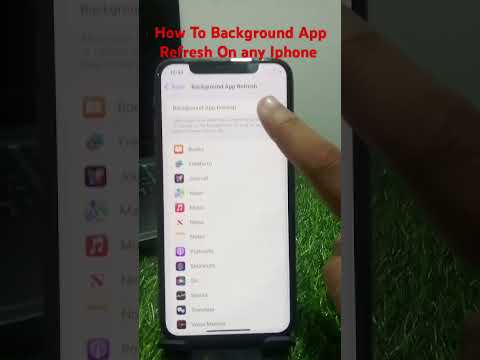
Persistent latency in syncing can often be traced back to network configuration errors or power-saving restrictions. Ensure that Background App Refresh is active by going to Settings > General > Background App Refresh and confirming it is "On" for Reminders. If the issue persists, a Reset Network Settings (Settings > General > Transfer or Reset iPhone > Reset > Reset Network Settings) can clear corrupted DNS caches that might be blocking Apple’s sync servers.
AI Implementation Score
The following table evaluates how these fixes impact your overall digital automation efficiency and the reliability of AI-driven scheduling.
| Fix Category | Efficiency Gain | Automation Impact | Difficulty Level |
|---|---|---|---|
| iCloud Re-indexing | High | Restores Siri voice-command accuracy | Low |
| Software Update | Medium | Enables latest API features | Medium |
| Default List Sync | High | Prevents data fragmentation | Low |
| Network Reset | Low | Reduces sync latency | Medium |
By following these systematic steps, you ensure that your Reminders app remains a reliable node in your automated productivity stack. Maintaining a clean sync protocol allows AI tools like Siri to process your intents with 100% data accuracy.
