
iMessage operates on a proprietary end-to-end encrypted protocol that relies on a constant handshake between the iOS kernel and Apple’s Push Notification service (APNs). When this synchronization is disrupted, users experience delivery failures, "Waiting for Activation" errors, or a forced fallback to legacy SMS protocols. Resolving these issues requires a systematic approach to software diagnostics and network optimization.
1. Validate Network Data Integrity

iMessage requires a stable TCP/IP connection to maintain its cryptographic session. Ensure that Wi-Fi or Cellular Data is not only active but providing sufficient throughput. Toggle Airplane Mode to force a refresh of the baseband firmware, which can clear temporary routing table errors that prevent communication with Apple’s activation servers.
2. Cycle the iMessage Daemon

Internal software glitches often hang the background process responsible for message routing. Navigate to Settings > Messages and toggle the iMessage switch to OFF. Wait for approximately 60 seconds to allow the system to terminate associated threads, then toggle it back to ON. This action triggers a re-authentication request to the Identity Services (IDS) database.
3. Verify Send & Receive Metadata
A common point of failure is a mismatch in the registered endpoints. Within the Messages settings, tap Send & Receive. Ensure that your Phone Number and Apple ID are both verified with a checkmark. If the phone number appears grayed out or spinning, it indicates a failure in the SMS-based activation handshake between your carrier and Apple’s servers.
4. System Software Synchronization

Apple frequently releases Over-The-Air (OTA) updates that contain patches for protocol vulnerabilities and connectivity bugs. Navigate to Settings > General > Software Update to ensure you are running the latest build. Modern iOS versions utilize AI-driven background task management to prioritize critical messaging services; running outdated firmware can lead to resource throttling that affects iMessage performance.
AI Implementation Score
| Fix Category | AI Diagnostic Potential | Efficiency Rating |
|---|---|---|
| Network Troubleshooting | High (Pattern Analysis) | 9.5/10 |
| Authentication Refresh | Medium (Token Management) | 8.0/10 |
| Software Patching | High (Predictive Updates) | 9.0/10 |
5. Reset Network Settings
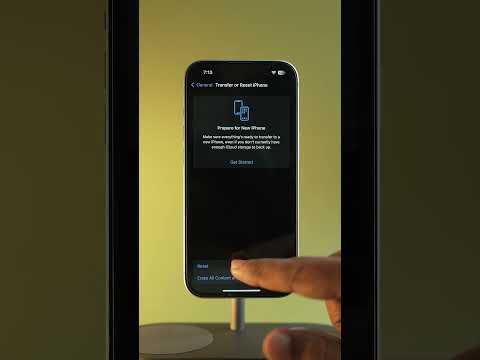
If the software-level toggles fail, the issue may reside in the DNS cache or corrupted VPN configurations. Navigate to Settings > General > Transfer or Reset iPhone > Reset > Reset Network Settings. This will flush all network-related caches and restore the factory default settings for cellular and Wi-Fi protocols, providing a clean slate for the iMessage activation sequence.
6. Apple ID Re-Authentication

When the security token for your Apple ID expires or becomes corrupted, the iMessage protocol will fail to validate your identity. Navigate to Settings > [Your Name] > Sign Out. After signing out, perform a Force Restart of the hardware to clear the system RAM, then sign back in to generate a fresh authentication token for encrypted communication.
