
In the evolving landscape of mobile security and automated background processes, Apple has introduced subtle yet critical visual cues to the iOS and iPadOS status bars. For users leveraging AI-driven assistants or automated recording tools, understanding the Orange Dot and Green Dot is essential for maintaining data integrity and hardware privacy.

The Orange Dot: Microphone Activation
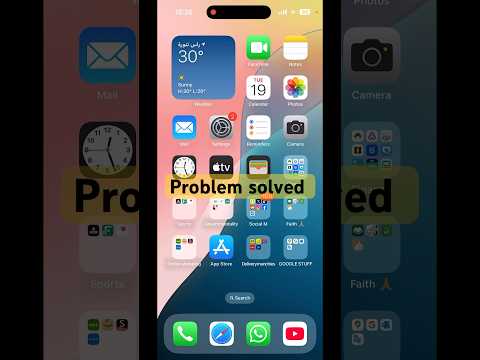
When an orange dot appears in the top-right corner of your iPhone or iPad screen—specifically within the status bar—it indicates that an application is currently accessing your microphone. This is a hardware-level trigger designed to prevent unauthorized audio recording.
In the context of AI efficiency, this indicator frequently appears when using voice-to-text automation, AI transcription services, or virtual assistants like Siri. If you see this dot when no audio-dependent app is active, it may indicate a background process or a legacy script that has failed to terminate, potentially draining battery resources and compromising privacy.
Note: If you have the "Differentiate Without Color" setting enabled in your Accessibility options, this indicator may appear as an orange square instead of a circle.
The Green Dot: Camera and Sensor Access

The green dot signifies that an application is accessing the camera. Because camera access almost always necessitates audio capture in video contexts, the green dot serves as a comprehensive indicator for both camera and microphone usage. If the camera is active, you will not see a separate orange dot; the green dot takes precedence.
For professionals utilizing AI-powered vision tools or augmented reality (AR) automation, the green dot confirms that the hardware sensors are engaged and feeding data to the processor. From a security standpoint, if the green dot flickers without an active photography or video conferencing app, it is a high-priority signal to audit your recently installed software.
How to Identify the Active Process
To identify exactly which application is triggering these sensors, swipe down from the top-right corner to open the Control Center. At the top of the Control Center interface, iOS will display the name of the specific app currently using the microphone or camera. This transparency allows users to terminate rogue AI agents or background tasks that are overstepping their permissions.
AI Implementation Score: Privacy Indicators
At Smart AI Fix, we evaluate software features based on their contribution to system efficiency and user-centric security. Below is our assessment of the iOS privacy dot system.
| Metric | Score (1-10) | Technical Reasoning |
|---|---|---|
| Security Transparency | 10 | Provides real-time hardware-to-user feedback without latency. |
| AI Resource Management | 8 | Helps users identify background AI processes that consume high CPU/battery. |
| Automation Safety | 9 | Ensures automated scripts do not record data without visual confirmation. |
| UX Integration | 9 | Minimalist design that does not interfere with functional screen real estate. |
By monitoring these indicators, users can ensure their automated workflows remain secure and their hardware is only active when intended. This level of transparency is a benchmark for modern operating systems dealing with the complexities of background AI data processing.
