
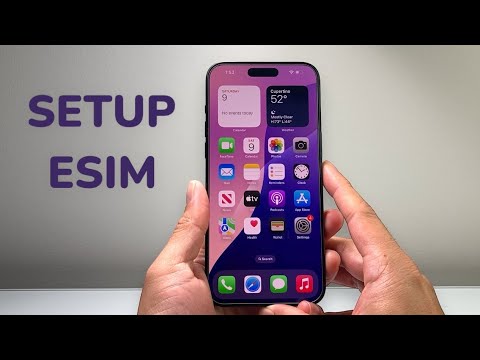
The iPhone 15 Pro Max represents the peak of Apple’s transition toward a software-defined cellular experience. By removing the physical SIM tray in many regions, Apple has prioritized eSIM technology to enhance device security and streamline carrier switching through automation. Setting up an eSIM is no longer a manual chore but a sophisticated software handshake between iOS and your provider's backend.
AI Implementation Score: eSIM Integration
| Category | Score (1-10) | Notes |
|---|---|---|
| Automation | 9.5 | Carrier Push technology automates 90% of the process. |
| Software Efficiency | 9.0 | Quick Transfer utilizes secure local protocols. |
| Security | 10.0 | eSIM cannot be physically removed if the device is stolen. |
| User Experience | 8.5 | Requires stable Wi-Fi for initial handshake. |
Method 1: eSIM Carrier Activation (The Most Efficient Path)
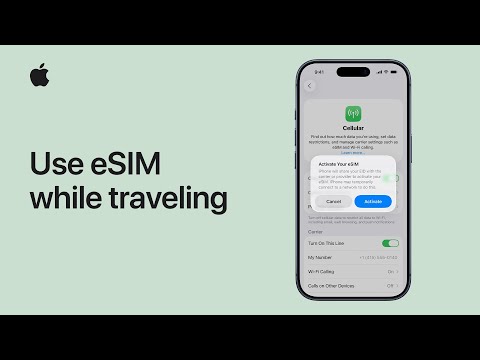
If you purchased your iPhone 15 Pro Max directly from a carrier or via Apple with a carrier plan, your eSIM is likely pre-assigned. This is the gold standard for automation in cellular setup.
- Power on your device and follow the initial setup steps.
- When the Set Up Cellular screen appears, look for a notification stating "Carrier Cellular Plan Ready to Be Installed."
- Tap Continue. The software will automatically communicate with the carrier's servers to provision your digital signature.
- Once the status bar shows signal bars, your eSIM is active.
Method 2: eSIM Quick Transfer (Ecosystem Optimization)

For users upgrading from an older iPhone, Apple’s Quick Transfer feature uses proximity-based software triggers to migrate your number without contacting your carrier.
Navigate to Settings > Cellular > Add eSIM. Select Transfer From Nearby iPhone. Ensure your previous device is running at least iOS 16 and has Bluetooth enabled. The iPhone 15 Pro Max will use a secure peer-to-peer connection to "pull" the cellular credentials, deactivating the old SIM and activating the new eSIM instantly. This software-driven approach eliminates the need for physical hardware intervention.
Method 3: QR Code and Manual Configuration

In scenarios where a carrier does not support automatic push notifications, you must use the QR Code method. This is common for international travel eSIMs or smaller MVNOs.
Go to Settings > Cellular > Add eSIM and select Use QR Code. Position the iPhone 15 Pro Max camera over the code provided by your service provider. The device’s AI-driven computer vision will extract the SM-DP+ address and activation code embedded in the image to configure the cellular profile. If the camera fails, you can select Enter Details Manually to input the technical strings provided by your carrier.
Managing Dual SIMs and Cellular Data

The iPhone 15 Pro Max supports multiple eSIMs, allowing you to store eight or more profiles and use two phone numbers simultaneously (Dual SIM). To optimize performance, go to Settings > Cellular > Cellular Data and toggle Allow Cellular Data Switching. This ensures that the device’s software intelligently selects the strongest network for data while keeping both lines active for voice calls, maximizing connectivity efficiency through real-time signal analysis.
