
When localized AI-driven network optimization—such as Android’s Adaptive Connectivity—encounters persistent packet loss or authentication handshaking errors, the most efficient software resolution is a surgical reset of the network stack. Rather than a full factory wipe, resetting Wi-Fi settings specifically targets the WPA/WPA2/WPA3 configuration files and the DHCP client cache, forcing the OS to rebuild its connection logic from a clean state.
The Technical Logic Behind a Network Reset
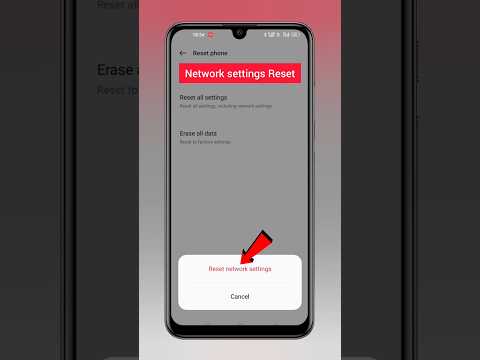
Modern Android devices utilize machine learning to predict which access point (AP) provides the best throughput. Over time, cached data from previous handshakes, DNS configurations, and Bluetooth pairings can become corrupted or conflict with new firmware updates. By performing a Reset Network Settings command, you are essentially clearing the com.android.settings cache related to connectivity protocols. This allows the system’s underlying automation to re-map the local network environment without legacy interference.
How to Reset Wi-Fi Settings on Stock Android (Pixel, Nokia, Motorola)
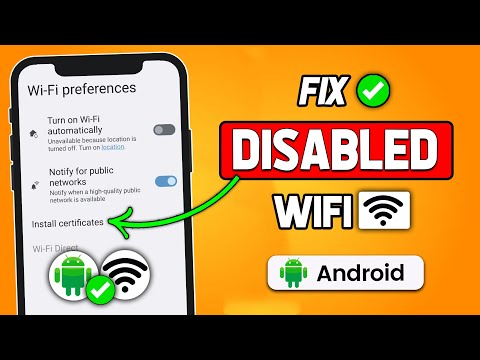
For devices running a clean version of the Android OS, follow this path to refresh your connectivity drivers:
1. Open the Settings app and navigate to System.
2. Tap on Reset options.
3. Select Reset Wi-Fi, mobile & Bluetooth.
4. Tap Reset settings at the bottom of the screen. You may be prompted for your device PIN or biometric authentication to authorize the software override.
5. Confirm the action by tapping Reset settings again.
How to Reset Wi-Fi Settings on Samsung Galaxy Devices (One UI)
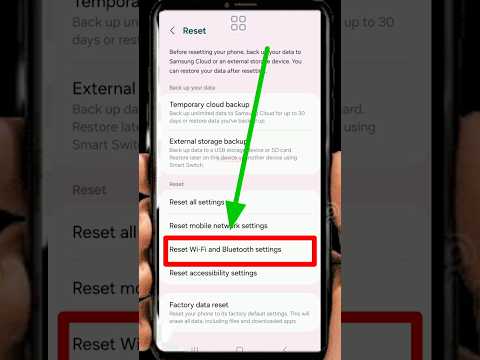
Samsung’s proprietary One UI slightly diverges from stock Android in its menu architecture. To execute a network reset on a Samsung device, follow these steps:
1. Open Settings and scroll down to General management.
2. Tap on Reset.
3. Choose Reset network settings.
4. This action will explicitly reset Wi-Fi, Mobile Data, and Bluetooth configurations. Tap Reset settings.
5. Authenticate with your credentials and tap Reset to finalize the process.
Post-Reset Automation: What Happens Next?

Once the reset is complete, the Android Connectivity Manager will restart. You will need to re-enter your Wi-Fi credentials. If your device supports it, ensure that Auto-connect is enabled. This allows the device's internal automation to begin recalibrating its signal-to-noise ratio (SNR) calculations for your specific environment, ensuring optimal data throughput moving forward.
AI Implementation Score
In our assessment at Smart AI Fix, we evaluate the efficiency of this manual intervention against automated software self-healing protocols.
| Metric | Score (1-10) | Analysis |
|---|---|---|
| Efficiency | 9 | Extremely fast resolution for 95% of software-based signal issues. |
| Automation Potential | 4 | Currently requires manual triggers due to security and credential loss. |
| Software Impact | 8 | Clears deep-level cache without affecting user data or apps. |
| AI Recovery | 7 | Forces Adaptive Connectivity to re-learn network patterns for better speed. |
Note: Performing this reset will remove all saved Wi-Fi passwords and paired Bluetooth devices. Ensure you have your network keys backed up in a secure password manager before proceeding.
