
The iOS Photos app serves as a sophisticated database hub, utilizing on-device machine learning to categorize images, recognize faces, and index metadata. When the app fails to launch, crashes unexpectedly, or displays a "missing" library, the underlying cause is typically a conflict between the Apple Neural Engine’s background processes and the system’s file directory. To restore peak performance and ensure your automated cloud backups are functioning, follow this technical recovery guide.

1. Force Restart and Process Re-initialization
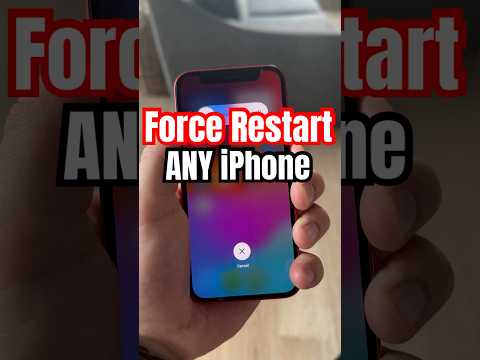
The first step in resolving a non-responsive Photos app is to force a hardware-level restart. This terminates hung background processes that may be locked in a loop while indexing facial recognition data or syncing with iCloud. For iPhone 8 and later, quickly press and release the Volume Up button, then the Volume Down button, and hold the Side button until the Apple logo appears. This flushes the system cache and re-initializes the application's runtime environment.
2. Optimizing Storage and Database Integrity

If photos appear "missing" or thumbnails are blank, the issue often lies in the iCloud Photo Library’s optimization logic. If your device is low on local storage, the AI-driven management system may fail to fetch full-resolution assets. Navigate to Settings > Photos and ensure Optimize iPhone Storage is toggled. If the app continues to crash, toggle iCloud Photos off and back on. This triggers a fresh handshake with the server, forcing the local database to re-verify its checksums against the cloud version.
3. Software Environment and API Conflicts

A corrupted iOS build can lead to system-level app failures. Ensure you are running the latest version of iOS by navigating to Settings > General > Software Update. Apple frequently pushes patches that refine the Vision Framework (the engine behind the Photos app). If the software is up to date but the app remains unresponsive, go to Settings > General > Transfer or Reset iPhone > Reset > Reset All Settings. This removes system-level configuration conflicts without deleting your data, allowing the Photos app to launch in a clean environment.
4. Analyzing AI Integration and Automation

Modern iOS versions rely heavily on computational photography and automated sorting. When the Photos app is non-functional, these automated workflows—such as "Memories" generation and "People" identification—grind to a halt. The efficiency of these fixes can be measured by how quickly the AI resumes background indexing after the repair.
AI Implementation Score
| Metric | Score (1-10) | Notes |
|---|---|---|
| Diagnostic Automation | 8/10 | iOS handles most repair indexing automatically upon restart. |
| Data Recovery Accuracy | 9/10 | iCloud synchronization ensures high data integrity. |
| Process Efficiency | 7/10 | Manual resets are occasionally required for database sync. |
| AI Functionality Restoration | 10/10 | Restoring the app fully reactivates object and face recognition. |
By following these steps, you address the software architecture and memory management issues that prevent the Photos app from operating. Maintaining a 10% buffer of free local storage is recommended to allow the iPhone's AI to perform background maintenance without interruption.
