
The secondary market for iPads is thriving, but navigating it requires a meticulous technical audit to ensure you aren't acquiring a "paperweight" or a device with hidden hardware degradation. At Smart AI Fix, we prioritize hardware longevity and software efficiency. Before you finalize any transaction, perform these ten critical diagnostic steps to ensure the hardware can handle modern iPadOS automation and AI-driven workflows.
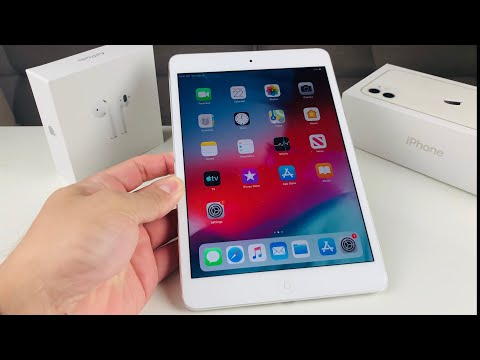
1. Verification of Activation Lock and iCloud Status

The most critical step is ensuring the device is not linked to a previous owner’s Apple ID. Go to Settings > General > Transfer or Reset iPad. If the device asks for a password to disable "Find My," it is still locked. A device with Activation Lock enabled is technically impossible to repurpose without the original credentials.
2. Battery Health and Cycle Count Analysis

Unlike iPhones, iPads do not show "Battery Health" in the standard settings menu. To get an accurate reading, connect the device to a laptop and use diagnostic software like iMazing or CoconutBattery. Look for the Cycle Count; any device over 500-600 cycles will likely require a battery replacement soon, which is a complex and costly repair on iPads due to heavy adhesive usage.
3. Mobile Device Management (MDM) Profile Check

Corporate or educational iPads are often managed via MDM profiles. Check Settings > General > VPN & Device Management. If a profile exists that you cannot remove, the organization can remotely lock or wipe the device at any time. Ensure the device is "clean" of any enrollment programs.
4. Display Integrity and Digitizer Responsiveness
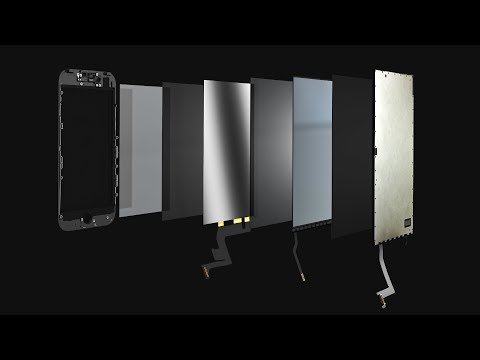
Run a "dead pixel" test using a full-screen white image. Additionally, check for backlight bleed on the edges. To test the digitizer, long-press an app icon until it jiggles and drag it across every square centimeter of the screen. If the icon "drops," you have a localized touch-response failure.
5. Biometric Authentication Functionality

Whether the iPad uses Touch ID or Face ID, these components are cryptographically paired to the logic board. If they are broken, they cannot be easily replaced by third-party shops. Set up your own biometrics during the inspection to confirm the sensors are operational.
6. Chassis Structural Integrity (The "Bend" Test)
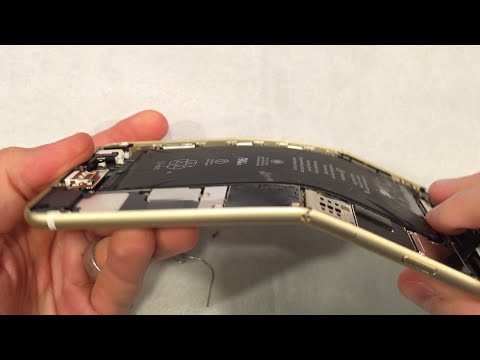
iPad Pro models, specifically the 11-inch and 12.9-inch variants, are susceptible to structural bending. Lay the iPad flat on a glass surface to see if it wobbles. Even a slight curve can put pressure on the logic board, eventually leading to intermittent Wi-Fi or touch issues.
7. Port Diagnostics and Data Transfer
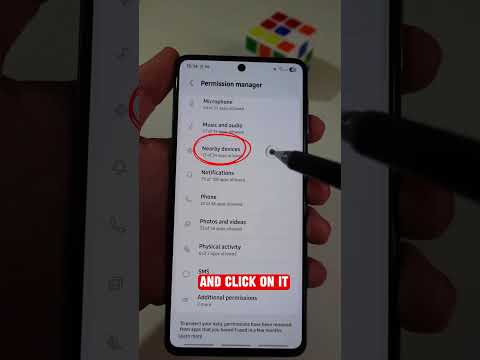
Don't just check if the iPad charges. Connect it to a computer to verify that the USB-C or Lightning port handles data transfer. Often, pins responsible for data can be corroded while charging pins remain functional. For Pro models, verify the Smart Connector on the back or side by attaching a Magic Keyboard or Folio.
8. Audio Output and Microphone Array

Open the Voice Memos app and record a snippet of audio while rotating the device. This tests the spatial microphone array. Then, play music at 100% volume to check for "crackling" in the quad-speaker setup, which indicates blown drivers or liquid damage.
9. True Tone and ProMotion Verification
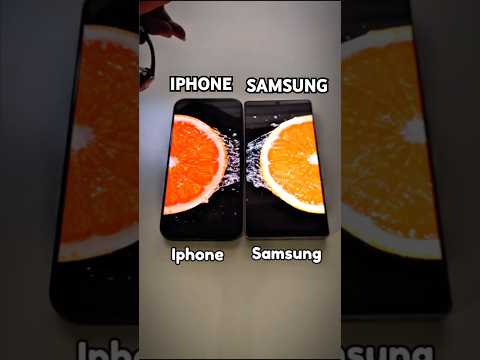
Navigate to Settings > Display & Brightness. If True Tone is missing, it is a high-probability indicator that the screen was replaced with a non-OEM third-party panel. For Pro models, ensure ProMotion (120Hz) feels fluid; stuttering may indicate GPU or thermal throttling issues.
10. Camera and ISP Check

Open the camera app and switch between all lenses. Look for "shaking" or clicking sounds, which indicate a failure in the Optical Image Stabilization (OIS). Take a photo of a plain white wall to check for dust particles trapped inside the lens assembly.
AI Implementation Score
To assist in your buying process, we have rated the best AI-driven tools and automated workflows for device verification.
| Tool Category | AI Implementation / Automation | Efficiency Score |
|---|---|---|
| Diagnostic Software | Automated hardware reporting and log analysis. | 9.5/10 |
| IMEI Checkers | Machine learning databases to predict theft/blacklist status. | 8.0/10 |
| Visual Inspection Apps | Computer vision to detect micro-cracks and screen bleed. | 7.5/10 |
By following this technical checklist, you ensure that your investment is optimized for the high-performance demands of modern software and AI integration. Always prioritize hardware transparency over a low price tag.
