
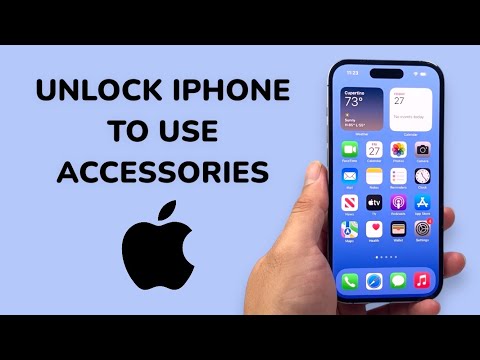
If you have encountered the prompt "Unlock iPhone to use accessories" while connecting your device to a computer, car, or peripheral, you are interacting with a security feature known as USB Restricted Mode. Introduced by Apple to mitigate unauthorized data extraction via hardware-based brute-force tools, this software lock effectively disables data communication through the Lightning or USB-C port if the device has not been unlocked for over an hour.
The Technical Logic Behind USB Restricted Mode

From an automation and efficiency standpoint, this security layer is a double-edged sword. While it protects user data, it often disrupts seamless workflows—especially for developers using AI-driven debugging tools or users relying on wired CarPlay and external storage. The software triggers a state where the port only accepts power (charging) but rejects data handshake protocols until the iOS kernel verifies the user's identity via passcode, Face ID, or Touch ID.
Step-by-Step Fix: Disabling the Restriction
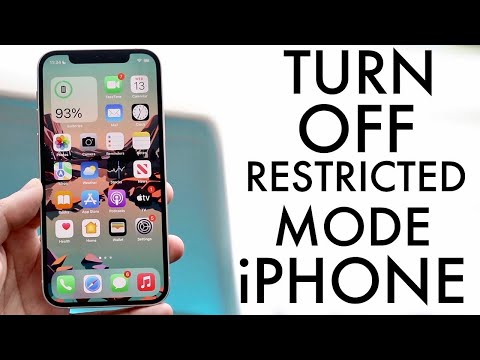
To optimize your device for continuous accessory use without the repetitive prompt, you must adjust the Data Protection settings within the iOS software stack. Follow these steps to permanently fix the issue:
1. Open the Settings app on your iPhone.
2. Navigate to Face ID & Passcode (or Touch ID & Passcode on older models).
3. Enter your current device passcode to access the secure menu.
4. Scroll down to the section labeled "Allow Access When Locked".
5. Locate the toggle for Accessories (or USB Accessories in older iOS versions).
6. Switch the toggle to ON (Green).
Note: By enabling this, you are allowing the iPhone to maintain a data connection with accessories even if the device has been locked for more than an hour. While this increases workflow efficiency, it slightly lowers the hardware security threshold against sophisticated physical forensic tools.
AI Implementation Score
In our evaluation at Smart AI Fix, we analyze how these software adjustments impact the broader ecosystem of automation and device management.
| Metric | Score (1-10) | Analysis |
|---|---|---|
| Setup Efficiency | 9/10 | Minimal manual intervention required for a permanent software fix. |
| Automation Compatibility | 10/10 | Essential for AI-driven data syncing and hardware testing. |
| Security Impact | 6/10 | Increases vulnerability to physical data extraction tools. |
| Logic Simplification | 8/10 | Removes the "Unlock" friction in the user experience loop. |
Why This Matters for Smart Ecosystems

As we move toward more autonomous software environments, the requirement for manual biometric authentication can become a bottleneck. For users integrating iPhones into smart home hubs or high-speed data arrays, ensuring the "Accessories" toggle is active allows for uninterrupted AI processing and data backups. If you frequently use third-party adapters or specialized audio equipment, this adjustment ensures that your software protocols remain active without constant human-in-the-loop verification.
