
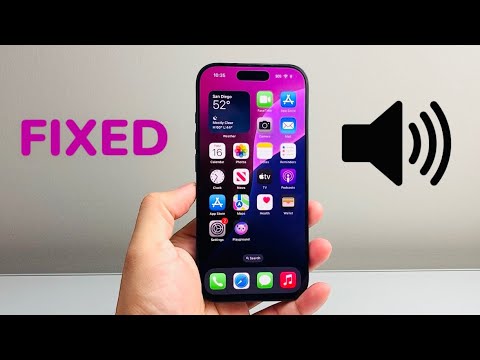
The iPhone 16 Pro Max features a redesigned acoustic system driven by the A18 Pro chip, delivering higher fidelity and increased decibel potential. However, many users have noticed that the minimum volume increment—specifically when using the hardware buttons—remains significantly louder than previous generations. This is a software calibration issue where the gain staging of the iOS 18 audio stack does not offer enough granularity at the bottom of the scale.
Method 1: AI-Driven Automation for Micro-Volume Control

The most efficient way to bypass the hardware volume steps is to utilize the Shortcuts app to create a custom automation. This allows you to set the volume to a specific integer that the physical buttons cannot reach.
1. Open the Shortcuts app and create a new shortcut named "Ultra Low Volume."
2. Add the action "Set Volume."
3. Tap the percentage and change it to 1% or 2% (Hardware buttons usually jump in 6% increments).
4. You can now place this as a widget on your Home Screen or trigger it via Siri for an instant, whisper-quiet audio profile.
Method 2: Leveraging the "Late Night" EQ Normalization
iOS includes an intelligent dynamic range compressor known as "Late Night." While originally designed for the Music app, it affects the system-wide audio output by compressing the peaks and raising the floor, effectively softening the impact of loud sounds at low volumes.
Go to Settings > Music > EQ and select "Late Night." This software-level adjustment recalibrates how the iPhone 16 Pro Max handles the audio signal, making the minimum volume setting feel significantly more subdued and less intrusive in quiet environments.
Method 3: Precision Manual Overrides via Control Center

The physical volume buttons on the iPhone 16 Pro Max are mapped to discrete steps. To achieve software-level precision, you must use the touch interface. Swipe down from the top right to open the Control Center. Long-press the volume slider to expand it. By sliding your finger slowly toward the bottom, you can access "dead zones" between the standard 0% and 6% increments that the buttons skip.
Method 4: Headphone Safety Decibel Limiting
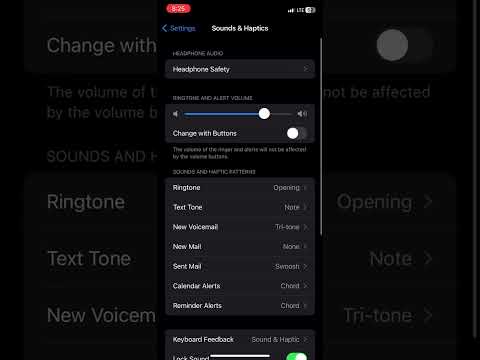
If you find that the volume is too loud even through external speakers or headphones, you can use the "Reduce Loud Sounds" feature to hard-cap the decibel output. Navigate to Settings > Sounds & Haptics > Headphone Safety. Toggle on "Reduce Loud Sounds" and set the slider to 75 decibels. This forces the A18 Pro’s neural engine to process audio through a limiter, preventing the volume from spiking even if the slider is moved.
AI Implementation Score
| Fix Method | Efficiency Rating | AI/Automation Level |
|---|---|---|
| Shortcuts Automation | 9.8/10 | High (Scripted) |
| Late Night EQ | 8.5/10 | Medium (Software Processing) |
| Control Center Slide | 7.0/10 | Low (Manual) |
| Decibel Limiter | 9.2/10 | High (System Constraint) |
By implementing these software-based optimizations, you can correct the gain imbalance on the iPhone 16 Pro Max. The combination of the 1% Shortcut automation and the Late Night EQ provides the most refined audio experience currently available on the iOS 18 architecture.
