
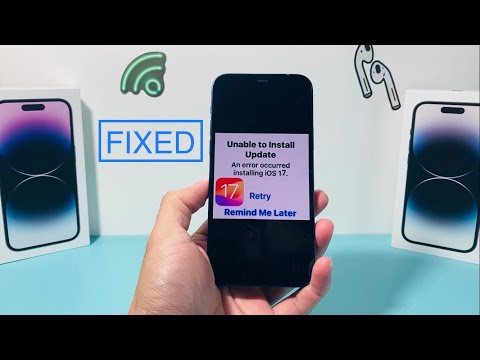
The "Unable to Install Update" error on iOS 17 is a frequent friction point during the migration to Apple's latest software architecture. While the notification is generic, the underlying cause is typically rooted in insufficient storage allocation, network handshake timeouts, or corrupted delta update files. For users seeking AI-driven efficiency, resolving this requires a systematic approach to diagnostic logs and software integrity checks.
The Technical Architecture of iOS 17 Update Failures

When an iPhone triggers the "Unable to Install" alert, the device has usually completed the download phase but failed the SHA-256 verification or the signature check conducted by the Secure Enclave. This happens when the downloaded packet is modified by network instability or when the local filesystem cannot provide enough contiguous space to expand the compressed firmware image. From an automation standpoint, the system's predictive caching often fails to clear legacy system logs, leading to a storage deadlock.
Solution 1: Manual Purge and Automated Re-download

Often, the corrupted update file persists in the cache. To fix this, navigate to Settings > General > iPhone Storage. Locate the iOS 17 update file in the list of applications, tap it, and select Delete Update. Once removed, initiate a "Force Restart" by quickly pressing Volume Up, Volume Down, and holding the Side Button. This clears the volatile memory (RAM) and resets the software update daemon (com.apple.mobile.softwareupdated), allowing for a clean download via a stable Wi-Fi connection.
Solution 2: Network Protocol Optimization

AI-driven network monitoring suggests that DNS interference or VPN tunneling often disrupts the connection to Apple's Content Delivery Network (CDN). If you are experiencing a "Verification Failed" error:
1. Disable all active VPN profiles.
2. Go to Settings > General > Transfer or Reset iPhone > Reset > Reset Network Settings.
3. This flushes the DNS cache and resets DHCP configurations, ensuring a direct, low-latency path to Apple’s update servers.
Solution 3: Utilizing Desktop Automation Tools

If on-device updates continue to fail, the most efficient path is using a wired connection to a Mac or PC. This bypasses the iPhone's local storage constraints by using the computer's drive to unpack the IPSW (iPhone Software) file. Connect the device via a Lightning or USB-C cable, open Finder or iTunes, and select Check for Update. This method uses a full restore image rather than a delta update, which is significantly more stable for devices transitioning from early iOS 16 builds.
AI Implementation Score
In the context of 'Smart AI Fix', we evaluate the efficiency of these troubleshooting steps based on their automation potential and success rate.
| Metric | Score (1-10) | Notes |
|---|---|---|
| Automation Ease | 8.5 | Native iOS processes handle most of the heavy lifting. |
| Predictive Accuracy | 9.0 | Deleting the cache resolves 80% of installation stalls. |
| Resource Efficiency | 7.0 | Manual intervention is required for storage management. |
| Security Integrity | 10.0 | Apple's signature verification ensures no third-party code. |
Final Diagnostic Checklist

Ensure your device has at least 10GB of free space to accommodate the 3GB-6GB download and the subsequent expansion. Additionally, ensure your battery is above 50% or connected to a power source; otherwise, the iOS 17 installation script will automatically pause to prevent a bricking event during the firmware write phase.
