
Android’s Adaptive Brightness is not merely a sensor-based adjustment; it is a sophisticated implementation of on-device machine learning designed to optimize power consumption and visual ergonomics. By leveraging Device Personalization Services, the operating system learns your manual adjustments in specific lighting conditions and creates a custom curve tailored to your preferences.
The Mechanics of AI-Driven Display Calibration

Modern Android smartphones utilize a combination of the ambient light sensor and a machine learning model—often influenced by Google’s DeepMind research—to determine the optimal lumen output. When you manually override the slider while Adaptive Brightness is active, you are effectively "training" the algorithm. Over time, the software automates these micro-adjustments, significantly reducing the need for manual intervention and enhancing battery longevity by preventing unnecessary high-brightness states.
How to Enable or Disable Adaptive Brightness via Settings
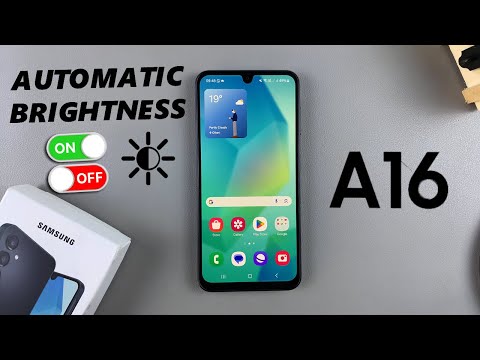
To access the core controls for your display’s AI behavior, follow these steps within the Android ecosystem:
1. Open the Settings app on your device.
2. Navigate to the Display section.
3. Locate Adaptive Brightness.
4. Toggle the switch to ON to enable AI-managed lighting, or OFF to maintain static manual control.
Note: On some manufacturer skins (like Samsung’s One UI or Xiaomi’s MIUI), this may be located under "Brightness Level," but the underlying logic remains consistent with standard Android frameworks.
Quick Access Implementation

For users who require immediate control over their display’s automation without diving into deep system menus, the Quick Settings panel provides an efficient shortcut:
1. Swipe down from the top of your screen twice to reveal the full Quick Settings tray.
2. Look for the brightness slider. Most modern builds feature a small "A" icon or a chevron next to the slider.
3. Tap this icon to toggle the Adaptive mode on the fly.
AI Implementation Score
The following table evaluates the efficiency and impact of Adaptive Brightness on the modern mobile experience:
| Metric | Score / Impact |
|---|---|
| User Automation | 9.5 / 10 |
| Energy Efficiency | 8.8 / 10 |
| Learning Latency | Low (Adaptive) |
| Hardware Integration | High |
Why You Should Keep AI Display Logic Active

From a technical standpoint, disabling Adaptive Brightness often leads to "vampire" power drain. Without the software's ability to throttle back the backlight in dim environments, the display—typically the highest consumer of milliampere-hours (mAh)—operates inefficiently. For power users and developers, keeping this feature enabled allows the Android System Intelligence to manage thermal throttling more effectively during high-performance tasks.
