
Modern Samsung Galaxy devices have transitioned from a simple hardware-based power cycle to a software-integrated interface. For users prioritizing system efficiency and hardware longevity, understanding the nuances of the One UI power management system is essential. Here are the two primary methods to execute a controlled shutdown on a Samsung device.
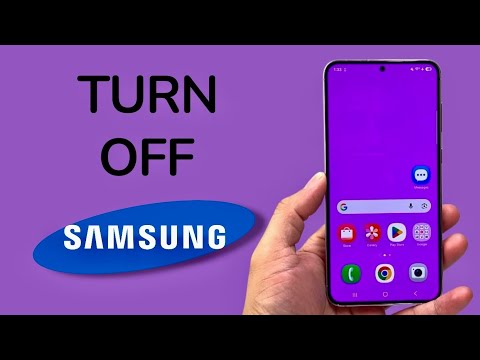
Method 1: The Quick Settings Software Interface
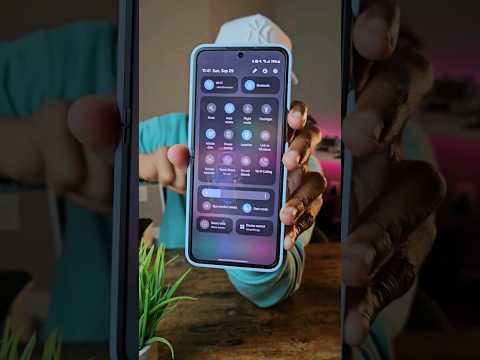
The most direct way to initiate a shutdown without stressing physical components is through the Quick Settings panel. This method leverages the software layer to ensure all background processes are properly cached and terminated before power-off.
1. Swipe down from the top of your screen using two fingers to fully expand the Quick Settings menu.
2. Locate the Power Icon (a circle with a vertical line) situated next to the Settings gear icon in the top-right corner.
3. Tap the icon to trigger the power menu overlay.
4. Select Power off and confirm the action by tapping the prompt a second time.
Method 2: Side Key Remapping and Hardware Execution

By default, many newer Samsung models trigger Bixby (the AI assistant) when the side button is held. To revert this to a traditional power menu or to use the hardware shortcut, follow this logical workflow:
The Combined Press: Simultaneously press and hold the Side Key and the Volume Down button for approximately three seconds. This bypasses the AI assistant and brings up the power management screen directly.
Automation Tip: To optimize your workflow, you can remap this button permanently. Navigate to Settings > Advanced features > Side key. Under the "Press and hold" section, change the selection from "Wake Bixby" to "Power off menu." This streamlines the manual shutdown process, reducing the cognitive load required for basic device maintenance.
AI Implementation Score
In our analysis at Smart AI Fix, we evaluate these methods based on their integration with the device's broader ecosystem and automation potential.
| Method | Efficiency Rating | AI Complexity | User Friction |
|---|---|---|---|
| Quick Settings (Software) | High | Low | Minimal |
| Side Key Remapping | Maximum | Medium | Low (Post-Setup) |
| Bixby Voice Command | Variable | High | Moderate |
For high-performance users, we recommend Method 2 with the remapping optimization. This aligns the hardware functionality with traditional user intent, ensuring that your Samsung Galaxy remains a tool of efficiency rather than a source of UI friction.
