
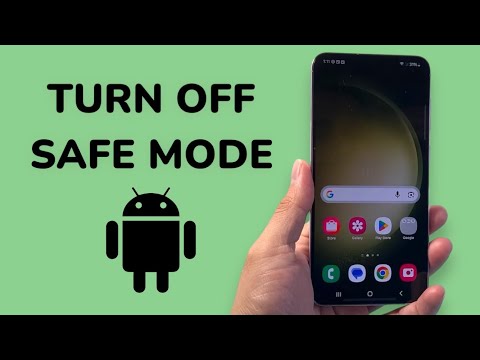
Encountering a hardware failure on your Android device—specifically a non-functional power button—can complicate basic system maintenance. When an Android or Samsung device becomes trapped in Safe Mode, it restricts third-party applications to ensure system stability. However, returning to standard operation does not require physical hardware intervention if you leverage software-driven solutions and system automation.
1. Utilizing the System Notification Interface

The most efficient software-based method to exit Safe Mode on modern Android builds is via the persistent notification layer. Swipe down from the top of the screen to reveal the Notification Panel. Locate the system alert labeled "Safe Mode is on" or "Tap here to turn off Safe Mode." By tapping this notification, the OS triggers a scripted reboot sequence. This process clears the system cache and restarts the device into its standard environment without requiring a physical long-press of the power button.
2. Deploying the Accessibility Assistant Menu
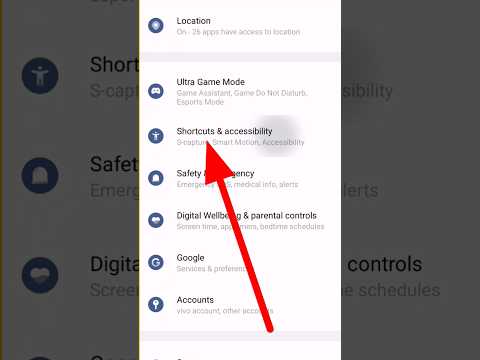
For devices where the notification alert is missing, Samsung and other Android OEMs offer an Accessibility Menu that serves as a virtual hardware bridge. Navigate to Settings > Accessibility > Interaction and dexterity and toggle the Assistant Menu to "On." A floating icon will appear on the UI. Tap this icon to access a virtual "Power off" menu. Selecting "Restart" from this software dashboard allows the device to cycle power and exit Safe Mode automatically.
3. Command Line Execution via ADB

If the touch interface is sluggish or partially unresponsive in Safe Mode, utilizing ADB (Android Debug Bridge) is the superior technical approach. Connect the device to a workstation with ADB drivers installed. Open your terminal and execute the command: adb reboot. This sends a direct instruction to the device kernel to perform a warm boot. This method bypasses all physical button requirements and is the standard for AI-driven device automation and remote troubleshooting.
4. Automated Restart via Voice Assistants

In certain firmware versions, Google Assistant or Bixby can be utilized to bypass manual input. By triggering the assistant and stating, "Restart my phone," the system may prompt a software confirmation to reboot. While Safe Mode disables most AI-third-party integrations, native system assistants often retain the permissions necessary to execute power-related scripts, providing a hands-free exit strategy.
AI Implementation Score
| Metric | Score (1-10) | Notes |
|---|---|---|
| Efficiency | 9/10 | Software triggers are faster than hardware cycles. |
| Automation Level | 8/10 | ADB and Voice Assistants minimize manual input. |
| Hardware Independence | 10/10 | Eliminates the need for physical buttons entirely. |
| UI/UX Accessibility | 9/10 | Assistant menus provide high redundancy for disabled hardware. |
By shifting from hardware-centric troubleshooting to software-driven automation, users can maintain full control over their Android ecosystem regardless of physical button wear. These methods ensure that your device remains functional and accessible through intelligent OS features and command-line interfaces.
