
In the evolving landscape of digital asset management, the synergy between iOS and macOS leverages advanced synchronization algorithms to ensure data integrity and accessibility. For users within the Smart AI Fix ecosystem, optimizing the flow of high-resolution media from an iPhone to a MacBook is not just about storage—it is about creating an automated pipeline for creative workflows and AI-driven organization.

1. iCloud Photos: The AI-Driven Automation Workflow

The most efficient method for maintaining a continuous media stream is iCloud Photos. This method utilizes cloud-side automation to synchronize your entire library across devices. When enabled, Apple’s Neural Engine on the iPhone categorizes images (identifying faces, objects, and scenes) before uploading them to the cloud. Once synchronized, your MacBook’s Photos app reflects these AI-curated albums instantly.
To implement this, navigate to Settings > [Your Name] > iCloud > Photos on your iPhone and toggle on iCloud Photos. On your MacBook, open the Photos app, go to Settings > iCloud, and ensure the same box is checked. This creates a bi-directional sync that requires zero manual intervention once the initial handshake is established.
2. AirDrop: High-Speed Peer-to-Peer Transfer
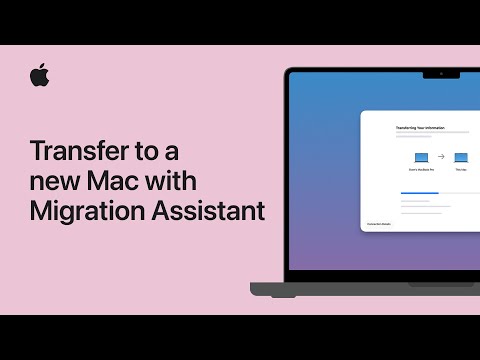
For immediate, ad-hoc transfers of large 4K video files or ProRAW images, AirDrop remains the gold standard for wireless P2P (peer-to-peer) data movement. This method bypasses the cloud, utilizing a combination of Bluetooth Low Energy (BLE) for discovery and point-to-point Wi-Fi for high-speed data transmission.
To execute, select your media in the iPhone Photos app, tap the Share icon, and select your MacBook from the AirDrop row. This is particularly effective for editors who need to move specific assets into a Final Cut Pro or Adobe Premiere timeline without waiting for cloud processing. The metadata, including GPS coordinates and AI-generated tags, remains intact during the transfer.
3. Image Capture: The Manual Control Interface
When dealing with massive volumes of data or when cloud storage is at capacity, the Image Capture utility on macOS provides a "clean" import environment. Unlike the Photos app, which attempts to manage your library using proprietary database structures, Image Capture allows you to dump raw files directly into specific folders or external drives.
Connect your iPhone via a USB-C or Lightning cable. Launch Image Capture from your Applications folder. Select your device, choose a destination folder, and click Download All. This method is preferred by power users who utilize third-party AI upscaling software or automated sorting scripts, as it provides a direct path to the local file system without additional software overhead.
AI Implementation Score
The following table evaluates these methods based on their automation capabilities and integration with Apple's ecosystem intelligence.
| Method | Automation Level | Transfer Speed | AI Metadata Retention |
|---|---|---|---|
| iCloud Photos | High (Auto-sync) | Dependent on ISP | Excellent |
| AirDrop | Low (Manual) | Very High | High |
| Image Capture | None | Highest (Wired) | Moderate |
By selecting the method that aligns with your technical requirements, you can ensure that your visual data is handled with maximum efficiency and minimal latency.
