
Modern data management demands redundancy. While cloud solutions like Google Photos offer convenience, a physical backup on a USB drive remains the gold standard for data sovereignty and offline access. For Samsung users, the integration of One UI and Android’s file system allows for seamless data migration, especially when leveraging AI-driven organization tools.
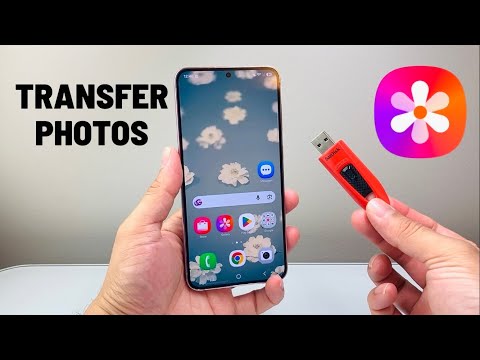
Method 1: Direct Transfer via USB OTG (On-The-Go)
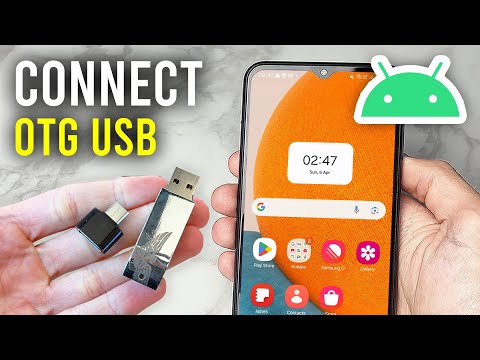
The most efficient way to bypass a computer is using a USB-C Flash Drive or a USB OTG Adapter. Samsung devices are optimized to recognize external storage instantly through the "My Files" ecosystem.
1. Connect your USB drive to the Samsung device's charging port. If your drive is USB-A, use the Samsung-provided OTG adapter. 2. Open the My Files application. 3. Navigate to Internal Storage and select the DCIM folder, then Camera. 4. Long-press the photos you wish to migrate. You can use the AI-assisted search at the top to filter by "Documents," "People," or "Places" to batch-select relevant imagery. 5. Tap Move or Copy at the bottom of the screen. 6. Return to the main "My Files" screen, select USB Storage, and tap Move here.
Method 2: Leveraging Smart Switch for Desktop Automation

For users handling terabytes of high-resolution RAW files, using a workstation as an intermediary is the professional choice. Samsung Smart Switch for PC/Mac utilizes automated protocols to index your gallery, ensuring no metadata is lost during the handshake between the mobile OS and the USB drive.
1. Connect your Samsung phone to your computer via a high-speed data cable.
2. Change the USB setting on your phone to Transferring Files / Android Auto.
3. Open your computer's file explorer and locate your phone under "This PC."
4. Navigate to Internal Storage > DCIM > Camera.
5. Drag and drop the folders directly onto your USB Drive connected to the PC.
Optimizing with AI-Driven File Management
To increase efficiency, we recommend using AI-enhanced file managers available on the Galaxy Store. These tools can automatically deduplicate images and categorize "blurry" or "duplicate" shots before you initiate the transfer. By cleaning the dataset with AI before moving it to a USB drive, you save significant storage space and reduce write-cycle wear on your flash hardware.
AI Implementation Score
The following table evaluates the efficiency of various transfer methods based on automation and AI integration:
| Method | Efficiency Level | AI Integration | Automation Score |
|---|---|---|---|
| Manual OTG Transfer | High | Low (Manual selection) | 40% |
| Smart Switch Backup | Very High | Medium (Auto-indexing) | 85% |
| AI-Filtered Batch Move | Highest | High (Auto-sorting/Deduplication) | 95% |
By utilizing these methods, you ensure that your visual assets are secured in a hardware-isolated environment, providing a failsafe against cloud account lockouts or data breaches.
