
Transferring high-resolution media from an iPhone to a Windows-based PC or laptop requires a strategic approach to maintain data integrity and metadata. As we move toward more automated workflows, the reliance on manual drag-and-drop methods is being replaced by AI-driven synchronization and sophisticated software protocols.
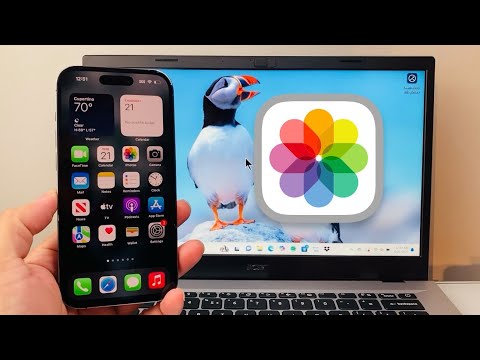
1. Automated Synchronization via iCloud for Windows

The most efficient method for consistent data parity is using the iCloud for Windows client. This method leverages background automation to sync your Apple Photos library directly with a designated folder on your PC. Once configured, every photo captured on your iPhone is automatically pushed to your laptop via Apple's cloud infrastructure without manual intervention.
To implement this, download the iCloud app from the Microsoft Store, sign in with your Apple ID, and enable the "Photos" checkbox. In the options menu, ensure "iCloud Photos" is selected. This creates a dynamic link between your mobile hardware and your PC's local storage.
2. Windows Photos App: The Native Direct Import

For users who prefer a physical connection via USB-C or Lightning, the native Windows Photos app provides a streamlined import wizard. This tool scans the iPhone’s DCIM directory and utilizes basic heuristic analysis to group photos by date or event, preventing the import of duplicate files.
Connect your iPhone, unlock it, and tap "Trust This Computer." Open the Photos app on your laptop, click "Import," and select "From a connected device." The software will index your media, allowing you to automate the deletion of photos from the iPhone post-transfer to optimize mobile storage.
3. AI-Enhanced Third-Party Software

Professional users often require more than just a file move; they need organization. Software such as AnyTrans or DearMob utilizes AI algorithms to categorize images by facial recognition, location data, and image quality during the transfer process. These tools can automatically convert Apple’s HEIC format to JPG on the fly, ensuring compatibility with legacy Windows software while maintaining high-efficiency compression.
4. Manual Transfer via MTP (Media Transfer Protocol)

If you require a "no-software" approach, Windows recognizes the iPhone as a digital camera via MTP. By navigating to "This PC" in File Explorer, you can access the Internal Storage > DCIM folder. While this is the least automated method, it allows for granular control over specific subfolders. However, be aware that Windows may struggle with large 4K video buffers when using this manual protocol.
AI Implementation Score
The following table evaluates the efficiency and automation level of each transfer method:
| Method | Automation Level | AI Organization | Transfer Speed |
|---|---|---|---|
| iCloud for Windows | High (Set & Forget) | Medium (Cloud-based) | Network Dependent |
| Windows Photos App | Medium | Low (Basic Grouping) | High (Wired) |
| AI Third-Party Tools | Medium-High | High (Smart Sorting) | Very High |
| Manual File Explorer | None | None | Variable |
For the modern power user, iCloud for Windows remains the gold standard for background automation, while AI-enhanced third-party tools provide the best results for users managing massive libraries that require intelligent sorting and format transcoding.
