
Taking a screenshot on an iPhone has evolved from a simple hardware trigger into a sophisticated data acquisition workflow. In the modern iOS ecosystem, capturing your screen is the first step in a high-speed pipeline that leverages On-Device Machine Learning (ML) and Optical Character Recognition (OCR) to transform static pixels into actionable data.
Hardware Methods: The Mechanical Trigger

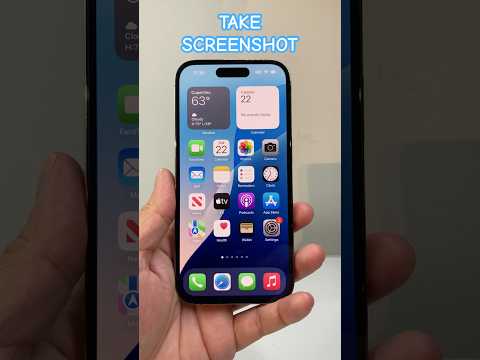
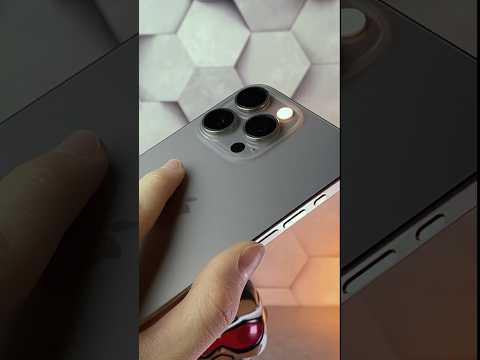
The primary method for capturing the screen depends on your iPhone’s architecture. For devices utilizing Face ID (iPhone X and later), simultaneously press the Side Button and the Volume Up button. For legacy devices or the iPhone SE series utilizing Touch ID, press the Side Button (or Top Button) and the Home Button simultaneously.
Upon successful capture, a thumbnail appears in the lower-left corner. This is not merely a preview; it is a gateway to the Markup UI, where iOS employs intelligence to suggest cropping, obfuscation of sensitive data, and instant sharing via the Share Sheet, which uses AI to predict your most likely contacts based on recent interactions.
Advanced Automation: Back Tap and AssistiveTouch
For power users focused on efficiency, manual button presses can be replaced by Back Tap, a feature powered by the iPhone’s accelerometer and processed by the Neural Engine. By navigating to Settings > Accessibility > Touch > Back Tap, users can assign a "Double Tap" or "Triple Tap" to trigger a screenshot. This automation reduces physical friction and extends the longevity of hardware buttons.
Similarly, AssistiveTouch allows for a software-based trigger. By enabling this in Accessibility settings, you can map "Screenshot" to a single tap of the floating on-screen menu, creating a seamless one-handed workflow for large-format devices like the iPhone 15 Pro Max.
AI Integration: Live Text and Scrolling Captures

The true power of the modern iPhone screenshot lies in Live Text. Once a screenshot is captured, the OS automatically runs an OCR scan. You can long-press on any text within the screenshot thumbnail to copy, translate, or call phone numbers directly. This eliminates the need for manual data entry, bridging the gap between visual media and digital text.
For web-based research, the Full Page screenshot feature is essential. When capturing a page in Safari, selecting "Full Page" in the editor allows the OS to stitch together the entire vertical render of the site into a single PDF, rather than multiple fragmented images. This is particularly useful for training local AI models or archiving long-form documentation.
Siri: Voice-Activated Capture
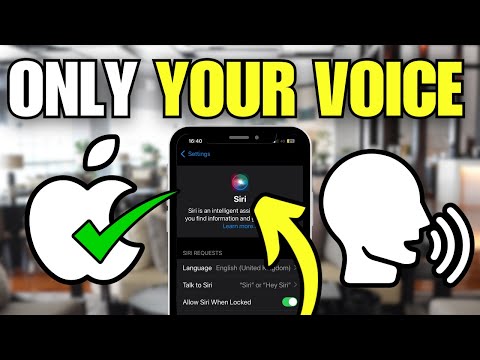
As AI assistants become more integrated into our workflows, voice-activated screenshots offer a hands-free alternative. By triggering Siri with the command, "Hey Siri, take a screenshot," the system executes the capture without user contact. This is processed via the Siri Inference Engine, ensuring the capture occurs precisely at the moment of the request, capturing dynamic content that might be missed during a manual grip adjustment.
AI Implementation Score
The following table evaluates the efficiency and AI depth of various screenshot methods available on iOS:
| Method | AI Integration Level | Efficiency Rating |
|---|---|---|
| Hardware Buttons | Low (Post-capture OCR only) | 7/10 |
| Back Tap (Accelerometer) | Medium (ML gesture recognition) | 9/10 |
| Siri Voice Command | High (Natural Language Processing) | 8/10 |
| Live Text / OCR | Very High (Neural Engine) | 10/10 |
By mastering these techniques, users move beyond simple image saving and into a realm of automated information management. Whether you are using Back Tap for speed or Live Text for data extraction, the iPhone screenshot utility remains a cornerstone of mobile productivity.
