
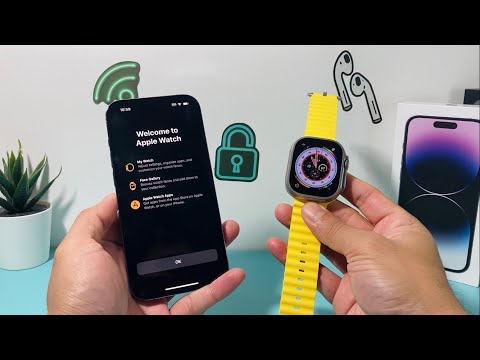
Setting up the Apple Watch Ultra requires a precise synchronization between hardware and the latest iterations of watchOS and iOS. To begin, ensure your iPhone is updated to the latest version of iOS and that Bluetooth is active. Power on the Apple Watch Ultra by holding the side button until the Apple logo appears. Once the proximity handshake is initiated, your iPhone will display a setup prompt. Align the iPhone camera with the swirling particle animation on the Ultra’s display to establish a secure, encrypted pairing.
AI Implementation Score
The Apple Watch Ultra represents a significant leap in wearable intelligence. Below is our assessment of its technical efficiency:
| Category | Score (1-10) | Notes |
|---|---|---|
| Setup Automation | 9.5 | Proximity-based pairing is nearly frictionless. |
| AI Voice Integration | 9.0 | On-device Siri processing reduces latency significantly. |
| Software Ecosystem | 9.8 | Seamless iCloud and HealthKit data synchronization. |
Configuration and Software Optimization
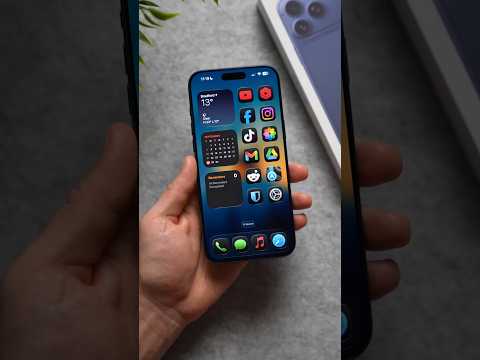
During the activation process, you will be prompted to choose between "Set Up as New Apple Watch" or "Restore from Backup." For users looking to optimize AI efficiency, a fresh setup is often recommended to prevent legacy cache issues. During this phase, you must configure the Action Button. This hardware feature is a primary tool for automation; users can map it to trigger specific Siri Shortcuts, allowing for one-touch execution of complex software workflows, such as starting a localized GPS track or activating a smart home scene.
The activation of Cellular Services is a critical step for the Ultra series. This allows the device to maintain its AI capabilities, such as real-time language translation and emergency SOS via satellite, without being tethered to an iPhone. Follow the on-screen prompts to link your existing carrier plan to the device's eSIM.
Advanced Security and Health AI Activation
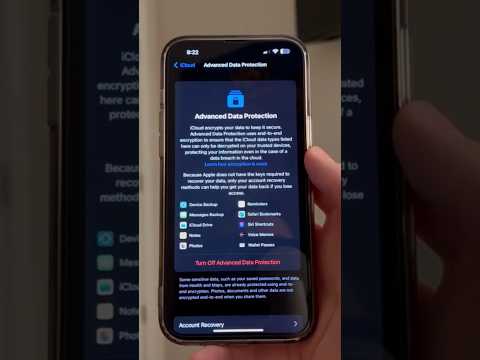
The final stage of the setup involves the Secure Enclave and health sensor calibration. You will be asked to set a passcode; this is mandatory for enabling Apple Pay and protecting the sensitive biometric data processed by the watch’s neural engine. Ensure that Heart Rate, Blood Oxygen, and ECG monitoring are enabled in the Health app. These features utilize machine learning algorithms to establish a "baseline" of your vitals, providing proactive alerts if anomalies are detected.
Once the software sync is complete, the Apple Watch Ultra will perform a background indexing of your apps and data. For maximum efficiency, navigate to the Watch App on your iPhone and curate your notifications to ensure that only high-priority, AI-sorted alerts reach your wrist, preserving both battery life and cognitive focus.
