
Apple’s iMessage framework utilizes sophisticated on-device heuristics to manage animations and user interface (UI) transitions. One of the most underutilized features for improving communication tone is the "Gentle" message effect. Unlike the "Loud" or "Slam" effects, the Gentle animation mimics soft speech by starting the text bubble at a reduced scale before subtly expanding it to the standard size. From a software perspective, this provides a visual cue that reduces the perceived urgency or "noise" of a digital notification.
Step-by-Step Technical Implementation

To execute the Gentle special effect, your device must be running iOS 10 or later, though the latest versions of iOS have optimized the haptic feedback integration for this specific workflow. Follow these steps to trigger the effect:
1. Initialize the Interface: Open the Messages app and navigate to an existing thread or start a new conversation. Type your desired text or insert media into the input field.
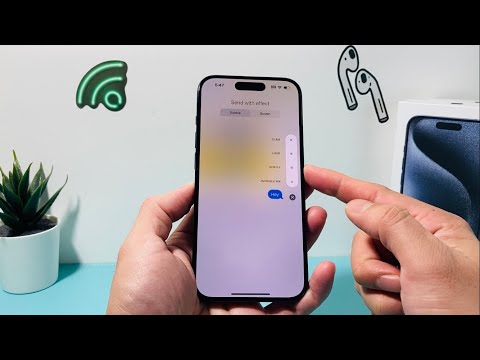
2. Activate the Effects Menu: Instead of a standard tap on the Send button (the blue upward arrow), you must perform a Long-Press or apply Haptic Touch. This action interrupts the standard transmission protocol and opens the "Send with effect" overlay.
3. Selection of the Bubble Layer: Ensure the toggle at the top of the screen is set to "Bubble" (which is the default). You will see a list of four primary animation styles: Slam, Loud, Gentle, and Invisible Ink.
4. Preview and Finalize: Tap the circular icon next to "Gentle". The iOS UI will provide an immediate preview of the animation. If the visual output meets your requirements, tap the Send button again to transmit the packet with the embedded metadata for the animation.
The Role of On-Device Intelligence in UI/UX
While these effects appear purely cosmetic, they are governed by Core Animation and Metal frameworks, ensuring that the rendering does not prioritize GPU cycles over background system tasks. For those interested in automation and AI efficiency, these visual layers are part of Apple's broader strategy to use software to bridge the gap between human emotion and digital data.
By using the Gentle effect, you are essentially leveraging contextual UI signaling. This reduces the cognitive load on the recipient by signaling that the message content is non-urgent or sensitive in nature.
AI Implementation Score
The following table evaluates how iOS integrates intelligence and efficiency into this specific messaging feature.
| Metric | Score (1-10) | Technical Justification |
|---|---|---|
| User Experience (UX) Flow | 9 | Seamless integration into the existing Send button via Haptic Touch logic. |
| Rendering Efficiency | 10 | Utilizes low-power vector scaling to minimize battery drain during animation playback. |
| Contextual Awareness | 6 | Currently requires manual selection; lacks AI-driven auto-suggestions based on text sentiment. |
| Cross-Platform Sync | 4 | Limited to the iMessage ecosystem; fails to render on standard SMS/RCS protocols. |
Understanding these software nuances allows users to master the Smart AI Fix philosophy: optimizing every interaction for maximum efficiency and clarity. Using the Gentle effect is a simple yet powerful way to refine your digital footprint within the Apple ecosystem.
