
Capturing high-fidelity visual data on legacy hardware like the iPhone 7 Plus remains a fundamental task for mobile developers, QA testers, and power users. While newer iterations have shifted toward gesture-based commands, the iPhone 7 Plus utilizes a specialized combination of mechanical and haptic feedback triggers. At Smart AI Fix, we prioritize efficient software workflows; here is the technical breakdown of how to execute screen captures using physical triggers, software overlays, and automation.
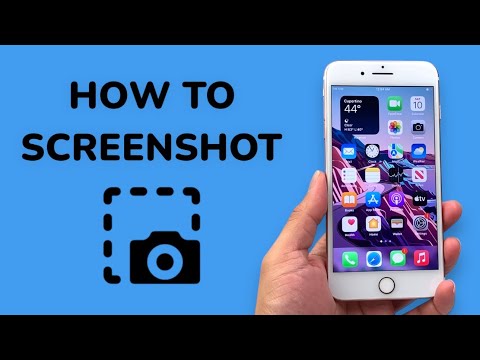
Method 1: The Native Hardware Execution

The primary method for capturing a screenshot on the iPhone 7 Plus relies on the synchronization of the Power (Sleep/Wake) button and the Home button. It is important to note that the iPhone 7 Plus features a solid-state Home button powered by the Taptic Engine, meaning the device must be powered on for the sensor to register the physical input.
To execute: Simultaneously press and release the Power button (located on the right side of the chassis) and the Home button (centered below the display). A successful capture is indicated by a white screen flash and a camera shutter audio cue. The system immediately caches the image to the HEIF/JPEG buffer and displays a thumbnail in the lower-left corner for immediate annotation or AI-driven OCR processing.
Method 2: AssistiveTouch (Software-Defined Automation)

For users seeking to minimize mechanical wear or those requiring a one-handed automation workflow, AssistiveTouch offers a software-based solution. This method leverages the iOS accessibility layer to simulate hardware triggers through a virtual interface.
1. Navigate to Settings > General > Accessibility.
2. Enable AssistiveTouch.
3. Under "Customize Top Level Menu," add the Screenshot icon.
Once configured, you can trigger a screen capture by tapping the floating action button and selecting the Screenshot command. This bypasses the need for physical button synchronization entirely.
Method 3: Voice-Command Integration via Siri
In an environment focused on hands-free efficiency, Siri acts as the primary voice-AI interface for system commands. By invoking the digital assistant with the command "Hey Siri, take a screenshot," the OS executes a background script to capture the current frame buffer. This is the most efficient method for capturing dynamic content where physical interaction might interrupt the UI state.
AI Implementation Score
The following table evaluates the efficiency and "smart" integration of each capture method based on automation potential and ease of use.
| Method | Efficiency Rating | Automation Potential | AI Integration Score |
|---|---|---|---|
| Physical Buttons | High | Low | 2/10 |
| AssistiveTouch | Medium | Medium | 6/10 |
| Siri Voice Command | High | High | 9/10 |
By mastering these three modalities, users can optimize their data capture workflows on the iPhone 7 Plus. Whether you are documenting software bugs or archiving information for an AI training set, choosing the right trigger—hardware, software, or voice—is key to operational efficiency.
