
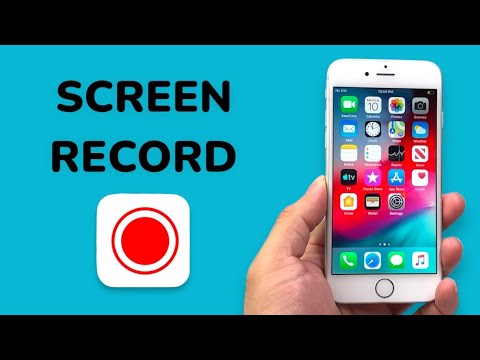
Optimizing legacy hardware like the iPhone 6 requires a precise understanding of the iOS ecosystem. While newer iterations of the iPhone integrate AI-driven capture tools, the iPhone 6 relies on the foundational Screen Recording API introduced in iOS 11. To capture high-quality video and audio on this device, users must ensure their software is updated to at least iOS 11 and configure the Control Center for rapid access.
Enabling the Screen Recording Tool

On the iPhone 6, the screen recording feature is not active by default. You must manually inject the module into your Control Center to begin. Follow these technical steps:
1. Navigate to Settings and select Control Center.
2. Tap on Customize Controls.
3. Scroll down to find Screen Recording and tap the green (+) icon to move it to the "Include" section.
This action creates a shortcut within the hardware-level interface, allowing for seamless execution without navigating through multiple sub-menus, which is vital for maintaining system efficiency on older A8 chips.
Capturing Video with External Audio (Microphone)
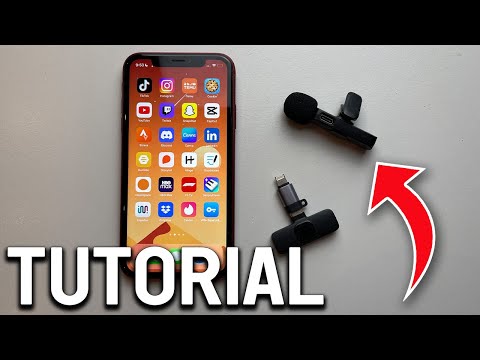
A common friction point for technical users is the omission of audio during a recording session. By default, the system captures internal system sounds only. To include voiceover or external audio, you must engage the long-press haptic trigger (or long-press on the non-3D Touch iPhone 6 display):
1. Swipe up from the bottom of the screen to open the Control Center.
2. Locate the Screen Recording icon (a solid circle inside a ring).
3. Long-press the icon until a sub-menu appears.
4. Tap the Microphone icon to toggle it from "Off" to "On" (it will turn red).
5. Select Start Recording.
This method ensures that the audio stream is synchronized with the video buffer, a critical requirement for creating instructional content or documenting software bugs for AI-assisted diagnostic tools.
AI Implementation Score
At Smart AI Fix, we evaluate hardware tasks based on their potential for automation and integration into modern AI workflows. The iPhone 6 screen recording capability scores as follows:
| Metric | Score (1-10) | Analysis |
|---|---|---|
| Ease of Execution | 9 | Native integration requires zero third-party software. |
| Automation Potential | 4 | Limited due to lack of Shortcuts app depth on iOS 12. |
| AI Training Utility | 7 | High-quality source for training Computer Vision (CV) models. |
| System Efficiency | 6 | The A8 chip may experience slight frame drops during heavy UI tasks. |
Finalizing the Capture

To conclude the recording, tap the red status bar at the top of the screen and confirm Stop. The file is automatically processed and saved as an H.264 MOV file in your Photos app. From here, the file can be offloaded via iCloud or AirDrop for further processing through AI video enhancers or automated transcription services.
