
When an iPhone begins to exhibit lag, connectivity drops, or erratic software behavior, most users fear a total factory wipe. However, leveraging the iOS system architecture allows for a strategic reset that targets software configurations without compromising your photos, videos, or third-party applications. At Smart AI Fix, we focus on high-efficiency troubleshooting that minimizes manual data recovery through automated system maintenance.
Understanding the Difference: Reset vs. Erase

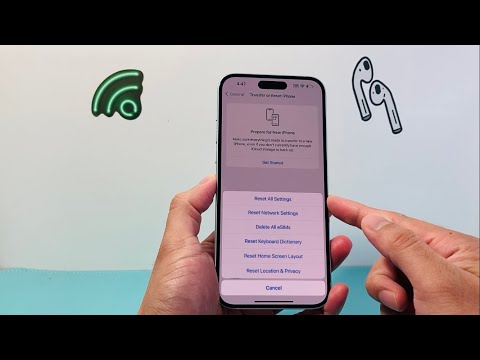
To perform a reset without data loss, you must navigate to the correct subsystem within iOS. Apple distinguishes between "Reset All Settings" and "Erase All Content and Settings." The former acts as a software recalibration, while the latter is a destructive process that wipes the NAND flash storage. For the purpose of maintaining data integrity, we utilize the non-destructive reset pathways.
Step-by-Step Guide to a Data-Safe Reset
To initiate a system-level recalibration while keeping your user data intact, follow this sequence:
1. Open Settings and navigate to General.
2. Scroll to the bottom and select Transfer or Reset iPhone.
3. Tap Reset (Do NOT tap Erase All Content and Settings).
4. Select Reset All Settings.
Reset All Settings will return system-level preferences—such as Wi-Fi passwords, Bluetooth pairings, Apple Pay cards, and alarm clocks—to their default state. However, your library of photos, apps, and documents remains untouched. This is the most efficient way to solve deep-rooted OS bugs without a 40GB+ restore process.
The Role of AI and Background Automation in Data Retention

Modern iOS updates utilize machine learning algorithms to index your data in the background. When you perform a "Reset All Settings," the core database for your Media Library and Application Sandbox remains locked and protected. The automation within iOS ensures that only the plist files (preference files) are purged, allowing the operating system to rebuild its configuration from scratch, which often clears up "System Data" bloat and improves processing speed.
AI Implementation Score: iPhone System Reset
The following table evaluates the efficiency and technological integration of this specific iPhone troubleshooting method.
| Metric | Score (1-10) | Notes |
|---|---|---|
| Data Integrity | 10/10 | Zero risk to photos, videos, or app data. |
| Efficiency | 9/10 | Process completes in under 5 minutes. |
| Automation Level | 8/10 | iOS handles the re-indexing of files automatically. |
| Complexity | 2/10 | Easily accessible for non-technical users. |
Final Precautions

While the Reset All Settings feature is designed to be non-destructive, we always recommend a brief iCloud or iTunes backup before performing any system-level changes. If your iPhone is experiencing hardware-level failure, software resets may provide temporary relief, but the AI diagnostics tool within Apple Support should be your next logical step for a permanent fix.
