
Streamlining the iOS Interface: Disabling the AssistiveTouch Overlay

For power users and automation enthusiasts, screen real estate is a premium asset. The floating home button, technically known as AssistiveTouch, is an accessibility feature designed for users with physical impairments or those dealing with a malfunctioning hardware button. However, with the evolution of gesture-based navigation and AI-driven shortcut automation, many users find this persistent overlay intrusive to their workflow. Removing it restores the intended minimalist aesthetic of the iOS environment.
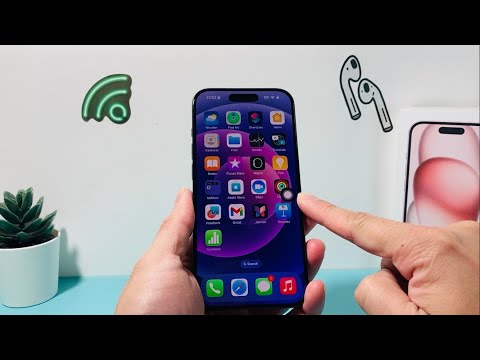
Step-by-Step Technical Procedure to Remove the Floating Button
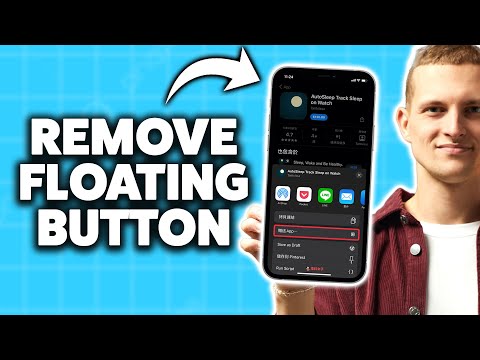
To eliminate the AssistiveTouch overlay and return to a gesture-centric interface, follow these steps within the iOS architecture:
1. Open the Settings application on your iPhone.
2. Navigate to the Accessibility menu. This section governs the software's interaction layer.
3. Under the "Physical and Motor" header, select Touch.
4. Locate the AssistiveTouch toggle at the top of the screen.
5. Toggle the switch to Off.
The floating grey icon will immediately vanish from the UI. If you find that the button reappears spontaneously, check your Accessibility Shortcut settings (found at the bottom of the main Accessibility menu). It is possible that a triple-click of the Side Button is configured to re-enable the feature automatically.
The AI Implementation Score
In the context of modern device management, we evaluate features based on their integration with systemic automation and user efficiency. Below is the Smart AI Fix assessment for managing AssistiveTouch:
| Criteria | Score (1-10) | Notes |
|---|---|---|
| Automation Ease | 9/10 | Can be toggled via Siri or Shortcuts app. |
| UI Efficiency | 4/10 | The overlay often obscures contextual AI elements. |
| Hardware Redundancy | 10/10 | Haptic engines and gestures render it obsolete for most. |
| Neural Engine Synergy | 7/10 | iOS uses predictive touch to reduce the need for manual buttons. |
Leveraging Siri for Hands-Free Management

For those who prefer software automation over manual menu navigation, Apple’s voice recognition engine provides a direct command path. By invoking the virtual assistant with "Hey Siri, turn off AssistiveTouch," the system executes the command at the kernel level without requiring the user to navigate the settings hierarchy. This is the preferred method for maintaining high-velocity workflows while managing UI overlays.
If you are transitioning away from the floating button, ensure your Reachability settings are optimized (Settings > Accessibility > Touch > Reachability). This allows you to swipe down on the bottom edge of the screen to bring the top of the interface within thumb's reach, effectively replacing one of the primary functional uses of the AssistiveTouch menu.
