
To leverage the iPhone as a professional-grade audio capture device, users must look beyond the surface of the native Voice Memos application. While the interface is minimalist, the underlying software architecture is designed for high-fidelity data ingestion, which is critical for AI-driven transcription and post-processing automation. Capturing clean audio is the first step in any efficient digital workflow.
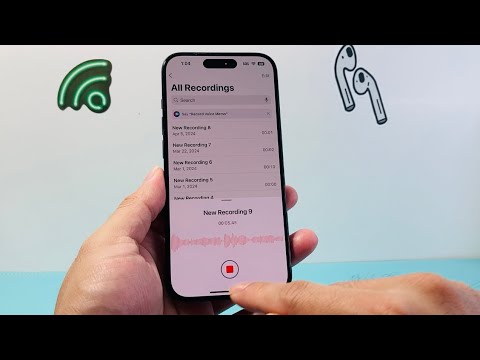
Step 1: Primary Audio Capture Configuration
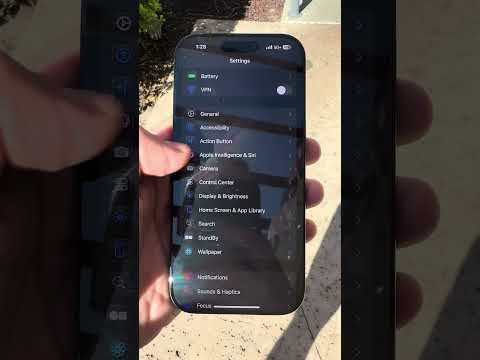
To begin recording, locate the Voice Memos app on your iOS device. For those optimizing for speed, adding the utility to the Control Center via Settings is recommended. Once the app is launched, tap the large red Record button to initiate the session. To ensure the best input for AI transcription engines, maintain a distance of approximately 6-8 inches from the bottom microphone array. Tap the record button again to conclude the session; the file is automatically saved with a location-based timestamp, which can be modified for better metadata management.
Step 2: Leveraging AI-Driven Audio Enhancement

One of the most powerful features for modern tech professionals is the "Enhance Recording" algorithm. After a recording is finished, tap the "Options" icon (the three horizontal lines or sliders) on the specific memo. Toggle the Enhance Recording switch. This feature utilizes machine learning to reduce background noise and eliminate room reverberation, significantly increasing the success rate of automated AI transcription tools like Otter.ai or Whisper. Set your "Audio Quality" in the system settings to Lossless if you intend to use the audio for professional production.
Step 3: Automation and iCloud Synchronization
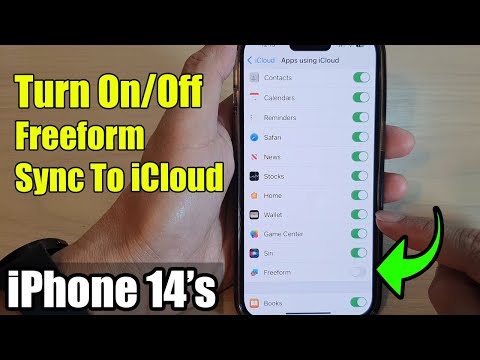
For a truly automated experience, synchronize your Voice Memos with iCloud. This ensures that any audio captured on your iPhone is instantly available on your Mac or iPad for further AI analysis or editing. Furthermore, you can utilize Siri Shortcuts to trigger recordings hands-free. By creating a shortcut titled "Start AI Note," you can automate the recording process, file naming, and even the subsequent upload to a cloud-based storage system for batch processing.
AI Implementation Score
The following table evaluates the efficiency of the native iPhone Voice Memos ecosystem for AI-related workflows:
| Category | Score (1-10) | Notes |
|---|---|---|
| Ease of Capture | 10 | Instant access via Control Center/Siri. |
| AI Noise Reduction | 9 | On-device ML effectively cleans audio. |
| Automation Potential | 8 | Strong Siri Shortcut integration. |
| Transcription Readiness | 9 | Lossless format support is ideal for APIs. |
Advanced Optimization: Lossless Audio

To maximize the technical quality of your recordings, navigate to Settings > Voice Memos > Audio Quality and select Lossless. While this increases file size, it prevents the compression artifacts that often confuse AI speech-to-text models. If you are looking to scale your hardware setup, acquiring a refurbished iPhone can be a cost-effective way to deploy dedicated "audio nodes" for constant environmental monitoring or meeting captures.
