
Managing the synchronization between iCloud and physical iPhone storage is a critical task for users looking to optimize their data accessibility. While iCloud acts as a powerful buffer for device capacity, there are scenarios—such as offline editing, high-fidelity AI processing, or local backups—where moving your full-resolution library back to the hardware is necessary. To achieve this effectively, you must reconfigure the iOS Photos sync engine to prioritize local storage over cloud-optimized thumbnails.
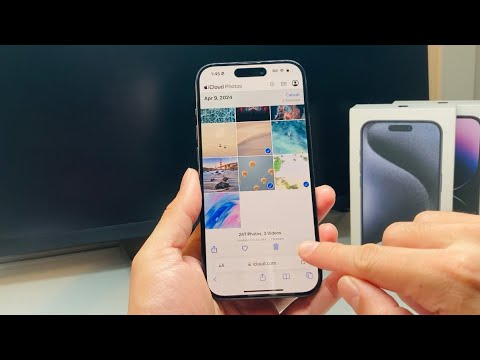
Method 1: Enabling 'Download and Keep Originals'

The most efficient way to migrate your entire iCloud Photo Library to your iPhone storage is through the system-level settings. By default, iPhones often use "Optimize iPhone Storage," which keeps low-resolution versions on the device and the full-res files in the cloud. To reverse this, follow these steps:
1. Open the Settings app on your iPhone.
2. Navigate to Photos.
3. Locate the storage section and select Download and Keep Originals.
Once selected, the iOS background automation agent will begin downloading high-resolution assets from iCloud servers to your local NAND flash storage. This process requires a stable Wi-Fi connection and sufficient local storage space. To monitor progress, scroll to the bottom of your "All Photos" tab in the Photos app; a status bar will indicate the remaining items to be downloaded.
Method 2: Manual Migration via the Files App
If you prefer to move specific albums or a curated selection of images to local storage without syncing the entire library, the Files app offers a more granular approach. This method treats the assets as raw files rather than dynamic library entries.
1. Open the Photos app and tap Select.
2. Choose the specific images you wish to store locally.
3. Tap the Share icon and select Save to Files.
4. Choose On My iPhone as the destination folder.
This action effectively severs the link between the iCloud synchronization loop and the file itself, creating a standalone copy on your device storage that will not be deleted if the iCloud version is removed.
Leveraging AI for Local Library Management

Moving photos to local storage significantly enhances the performance of On-Device AI. Features like Visual Look Up, facial recognition, and object categorization rely on local processing power. When photos are stored locally, the Neural Engine can index these assets without the latency of cloud fetching, leading to faster search results and more responsive smart album curation.
AI Implementation Score
This table evaluates the efficiency of moving iCloud assets to local storage based on automation and system optimization metrics.
| Metric | Score (1-10) | Description |
|---|---|---|
| Automation Level | 9/10 | Background syncing handles 100% of data migration once toggled. |
| Efficiency | 8/10 | Optimizes local AI processing speeds for Visual Look Up. |
| Data Integrity | 10/10 | Zero compression loss when moving from iCloud to local storage. |
| Ease of Use | 9/10 | Simple UI toggle within the native Settings framework. |
Before initiating a full library migration, ensure that your iPhone storage capacity exceeds the total size of your iCloud Photo Library. You can verify this in Settings > General > iPhone Storage. Failure to provide adequate space may cause the sync engine to stall or result in system instability during the download phase.
