
Optimizing Navigation: Enabling the Virtual Home Button on iPhone 12 Pro

Since the architectural shift toward bezel-less displays starting with the iPhone X, Apple has prioritized gesture-based navigation. However, for power users who demand the tactile efficiency of the classic interface, or for those transitioning from older hardware, the AssistiveTouch feature provides a sophisticated software-based solution. On the iPhone 12 Pro, this virtual button serves as more than just a home key; it acts as a customizable hub for system automation.
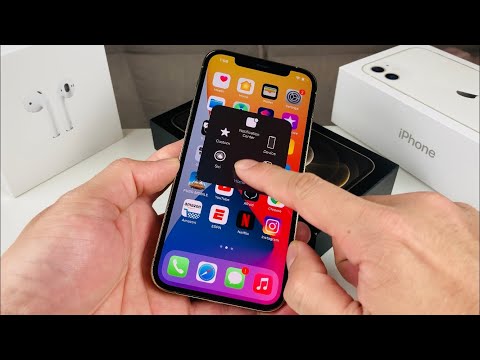
Step-by-Step Activation of AssistiveTouch
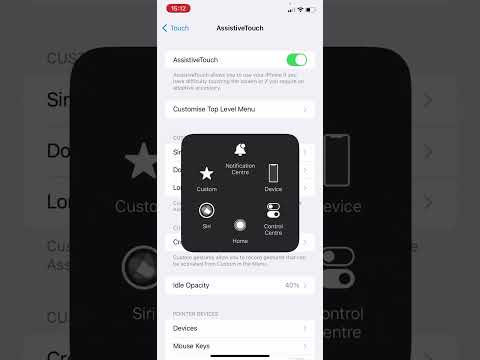
To integrate the virtual home button into your iOS environment, follow this technical path: Navigate to Settings and select Accessibility. Within the "Physical and Motor" subsection, tap on Touch, and then select AssistiveTouch. Toggle the switch to the On position. A floating, translucent icon will immediately appear on your display, which can be dragged to any peripheral location on the screen to avoid interfering with active UI elements.
Advanced Configuration and Custom Actions

The true utility of the virtual home button lies in its Custom Actions. Unlike the legacy hardware button, the AssistiveTouch interface can be programmed to trigger specific software macros. We recommend the following configuration for maximum workflow efficiency:
1. Single-Tap: Set to 'Home' to replicate the standard return-to-springboard function.
2. Double-Tap: Set to 'App Switcher' for rapid multitasking without the need for the upward-swipe gesture.
3. Long Press: Set to 'Siri' or 'Screenshot' to reduce the reliance on physical side buttons, thereby extending the mechanical lifespan of the device hardware.
AI Implementation Score
The following table evaluates how the AssistiveTouch software layer stacks up against traditional hardware and future AI-driven interface trends:
| Metric | Score (1-10) | Technical Analysis |
|---|---|---|
| UI Efficiency | 9 | Reduces physical movement and streamlines multi-step navigation. |
| Automation Potential | 8 | Integrates directly with iOS Shortcuts for complex task execution. |
| Adaptive Layout | 7 | The icon's opacity can be adjusted (Idle Opacity) to prevent screen burn-in. |
| Accessibility Utility | 10 | The gold standard for software-driven motor assistance. |
Software-Driven Hardware Replacement

As we move toward a future defined by AI-driven interfaces, the transition from mechanical buttons to programmable software overlays is inevitable. By utilizing AssistiveTouch on the iPhone 12 Pro, users are essentially adopting an early-stage adaptive UI. This not only preserves the ergonomic familiarity of the "Home" experience but also allows for a level of customization that hardware simply cannot provide. Adjusting the Idle Opacity to 20% ensures the button remains accessible without obstructing the high-fidelity HDR content provided by the Super Retina XDR display.
