
When dealing with high-performance wearables like the Apple Watch Ultra, system freezes or unresponsive applications can disrupt the seamless integration of your health data and automated workflows. While the S-series chips are designed for high efficiency and AI-driven task management, a hard reboot is sometimes necessary to clear the cache and reset the hardware-software handshake.
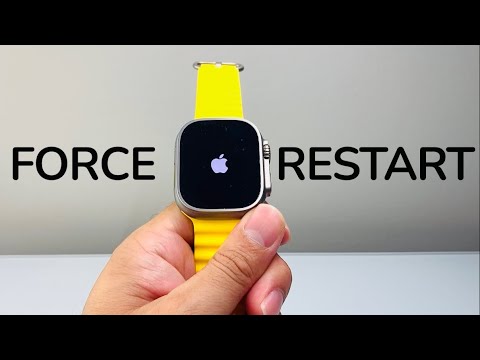
When to Force Restart Your Apple Watch Ultra

A standard restart (powering off and on) is always the preferred method to maintain data integrity. However, a force restart is required if the screen is unresponsive, the device is stuck on the Apple logo, or the haptic feedback engine fails to trigger. This procedure applies to the Apple Watch Ultra 1, Ultra 2, and subsequent iterations in the Ultra lineup.
Step-by-Step Hardware Reset Protocol

To initiate a hard reset on the Apple Watch Ultra, follow this specific hardware sequence:
1. Locate the physical controls: You will need to use both the Digital Crown and the Side Button (located below the Digital Crown). Note that the Action Button is not involved in this diagnostic procedure.
2. Simultaneous Press: Press and hold both the Digital Crown and the Side Button at the exact same time.
3. The 10-Second Threshold: Maintain pressure on both buttons for at least 10 to 15 seconds. Do not release them even if the screen goes black.
4. Apple Logo Confirmation: Release both buttons only when the Apple logo appears on the center of the display. This indicates that the system has successfully bypassed the software freeze and is performing a cold boot.
AI and System Optimization Post-Restart

Once the Apple Watch Ultra reboots, the watchOS environment will re-index local data and re-establish connections with your iPhone’s neural engine. At Smart AI Fix, we recommend checking for software updates immediately after a forced restart. Often, these "hangs" are caused by inefficient background processes or memory leaks that the latest firmware patches are designed to automate and resolve.
AI Implementation Score: Apple Watch Ultra
Below is our technical assessment of the Apple Watch Ultra’s system recovery and AI efficiency metrics.
| Criteria | Score (1-10) | Notes |
|---|---|---|
| Recovery Speed | 9/10 | Fast boot times due to S-series SiP efficiency. |
| Hardware Redundancy | 8/10 | Reliable physical button bypass for software locks. |
| AI Diagnostic Logic | 7/10 | On-device logs are useful for post-crash analysis. |
| Automation Stability | 9/10 | Excellent handling of Shortcuts and background tasks. |
Warning: Do not force restart your Apple Watch Ultra if you are currently performing a watchOS update (indicated by the progress circle). Interrupting a firmware installation can lead to a "bricked" state, requiring a visit to a service center.
