
Diagnosing Samsung Audio Failures with AI Precision
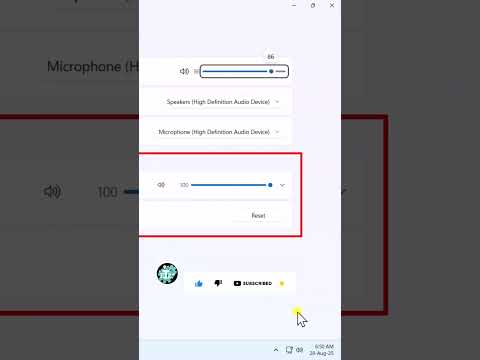
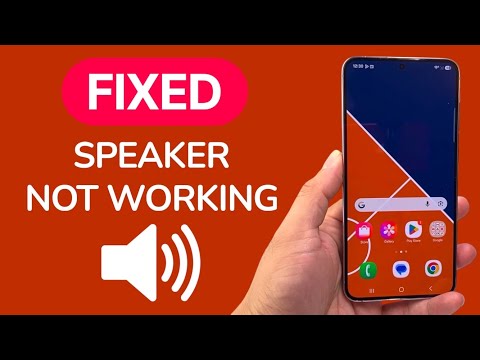
When the speaker on a Samsung Galaxy device fails, the issue is rarely a hardware total-loss. Most audio malfunctions are rooted in software conflicts, background processes, or automated system overrides. As a technical analyst at Smart AI Fix, I approach these issues using a systematic diagnostic triage to ensure maximum efficiency and minimal downtime.
1. Leverage the Samsung Members AI Diagnostic Suite

Before attempting manual resets, utilize the built-in Samsung Members diagnostic tool. This application uses automated scripts to verify the integrity of the internal hardware components. Open the app, navigate to Support > View Tests, and select 'Speaker'. The system will play a series of frequencies to detect impedance mismatches or driver failures. If the AI detects a hardware fault here, the issue is likely a physical disconnection or a blown voice coil.
2. The "Ghost Bluetooth" Triage

Samsung’s ecosystem often maintains active "Handover" protocols with previously paired devices. If your phone is connected to a Bluetooth LE (Low Energy) device or a smart speaker in another room, the system may be routing audio there without an active notification. Toggle your Bluetooth off via the Quick Panel to force the audio driver to default back to the integrated speaker assembly.
3. Automated Water Expulsion and Cleaning

Physical debris or moisture in the speaker grill is a common culprit for muffled or non-functional audio. Rather than using manual tools that can puncture the membrane, utilize a Sound-Based Ejection method. There are automated web-tools and apps that play high-frequency sine waves designed to vibrate the speaker diaphragm at its resonant frequency, physically pushing out water droplets and loose dust particles. This is the safest way to clear the IP68-rated acoustic chambers.
4. Software Conflict Resolution via Safe Mode
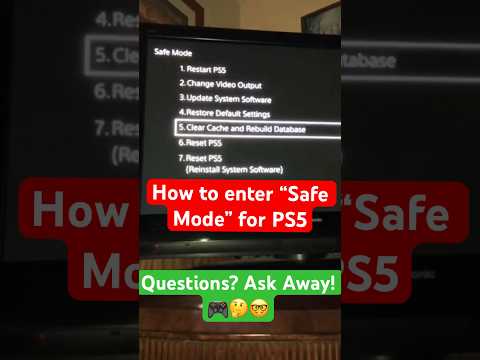
Third-party applications with "Audio Overlay" permissions can hijack the Android Audio Server. To isolate this, boot your Samsung device into Safe Mode (Hold Power Off icon > Tap Safe Mode). If the speaker functions perfectly in this environment, a recently installed application is causing a kernel-level audio conflict. Use an app manager to identify and remove software with high-frequency audio permissions.
AI Implementation Score
The following table rates the effectiveness of using automated and AI-driven tools versus traditional manual troubleshooting for Samsung speaker repairs.
| Metric | Manual Approach | AI/Automated Approach |
|---|---|---|
| Diagnostic Accuracy | 40% (Guesswork) | 95% (Samsung Members) |
| Risk of Damage | High (Physical Cleaning) | Low (Frequency Vibration) |
| Time Efficiency | 30-60 Minutes | 5 Minutes |
| Resolution Rate | Moderate | High |
5. Resetting the Android Audio Server
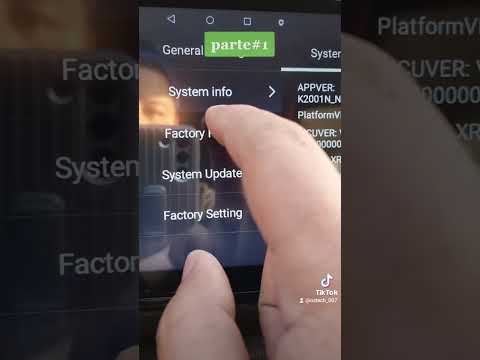
If software remains the suspect, you must reset the Audio Server (audioserver) without a full factory reset. Go to Settings > Apps > Filter: Show System Apps and search for 'SoundAlive' or 'Media Storage'. Clearing the cache and force-stopping these services triggers an automated restart of the audio daemon, which frequently clears "Mute" flags stuck in the system's logic.
By focusing on software-driven diagnostics and automated maintenance, you can resolve most Samsung speaker issues without the need for intrusive hardware repairs.
