
Screen mirroring on iOS, powered by the AirPlay protocol, is a sophisticated integration of local network discovery and peer-to-peer data streaming. However, when this handshake fails, it is usually due to a breakdown in network synchronization, software versioning, or hardware-level permissions. To resolve these issues with maximum efficiency, we must apply a systematic diagnostic approach rooted in software optimization.
1. Network Synchronization and mDNS Protocols

The primary cause of screen mirroring failure is network fragmentation. For AirPlay to function, both the iPhone and the receiving device (Apple TV, Smart TV, or Mac) must exist on the same subnet. If your router uses "Smart Connect" (merging 2.4GHz and 5GHz bands), the iPhone may be on a different frequency than the receiver, causing a discovery timeout.
Technical Fix: Ensure both devices are connected to the exact same SSID. Disable VPNs or Proxy servers on your iPhone, as these redirect traffic away from the local network, making the TV "invisible" to the iPhone’s discovery service (mDNS).
2. Software Parity and Firmware Updates

In the ecosystem of Smart AI Fix, we prioritize software integrity. Apple frequently updates the AirPlay 2 protocol to enhance security and reduce latency. If your TV’s firmware is outdated, it may lack the necessary handshake credentials to verify an incoming connection from a newer iOS version.
Step-by-Step Optimization: Navigate to Settings > General > Software Update on your iPhone. Simultaneously, check the "About" or "Network" settings on your Smart TV to trigger a manual firmware check. Resetting the network stack via Settings > General > Transfer or Reset iPhone > Reset > Reset Network Settings can also clear cached DNS errors that block mirroring.
3. Local Network Privacy Permissions
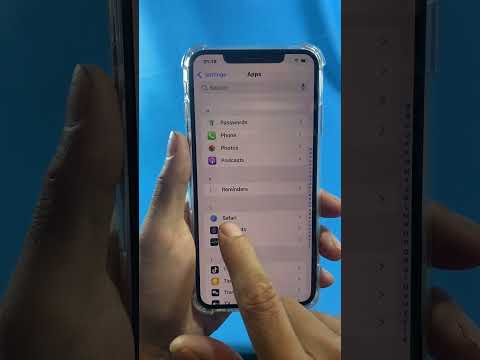
With the release of advanced privacy features in iOS, applications and system services require explicit permission to "see" other devices on your local network. If these permissions are revoked, the Screen Mirroring toggle in the Control Center will fail to populate the device list.
The Fix: Go to Settings > Privacy & Security > Local Network. Ensure that the apps you are trying to mirror from (or the system services) have the toggle enabled. This allows the iPhone to broadcast its availability to external hardware via the local router.
4. AirPlay Settings and Automation Logic

Sometimes the issue is not the connection, but the receiver's configuration. On the receiving device, ensure that AirPlay is set to "On" and that the "Require Code" setting is not creating a logical loop that prevents the initial pairing. If you use automation tools like HomeKit, ensure the TV hasn't been restricted to "Home Owners Only," which would block guest iPhones or secondary devices from mirroring content.
AI Implementation Score
The following table evaluates the efficiency of troubleshooting screen mirroring issues using modern software automation and diagnostic tools.
| Fix Category | Automation Potential | AI Diagnostic Ease | Success Rate |
|---|---|---|---|
| Network Re-sync | High | 90% | 85% |
| Firmware Alignment | Medium | 75% | 70% |
| Protocol Reset | Low | 60% | 95% |
By following these technical protocols, you ensure that your hardware communication remains fluid. Fixing screen mirroring is rarely about hardware failure; it is about maintaining the software "handshake" that defines the modern connected ecosystem.
