
Diagnosing the Samsung Black Screen of Death (BSoD)

The Samsung Black Screen of Death (BSoD) is a critical system state where the device remains powered on—indicated by LED lights or haptic feedback—but the display fails to render any graphical interface. From a software engineering perspective, this is frequently the result of a kernel panic, a firmware handshake failure, or a fragmented system cache rather than a definitive hardware terminal state. At Smart AI Fix, we prioritize algorithmic troubleshooting to bypass manual guesswork and restore device functionality through software-driven solutions.
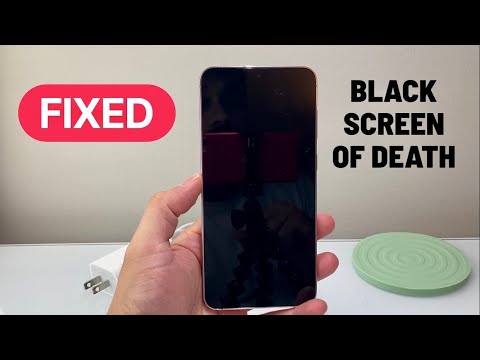
Step 1: The Forced Hardware Re-Initialization

Before assuming display failure, you must trigger a forced restart to clear the Volatile Random Access Memory (VRAM). This process interrupts the current power cycle and forces the CPU to re-initialize the firmware. To do this, press and hold the Volume Down button and the Power/Side button simultaneously for exactly 15 seconds. This bypasses the software-level "Power Off" command, which may be unresponsive during a system hang.
Step 2: Predictive Power Analysis
If the device remains unresponsive, the issue may reside in the Power Management Integrated Circuit (PMIC). Connect your Samsung device to an official PD (Power Delivery) charger for 30 minutes. If the screen remains black but the device generates heat, the firmware is likely stuck in a high-utilization loop. Use a smart power meter to check if the device is drawing current (measured in Amps). A draw of 0.0A to 0.1A suggests a motherboard-level logic failure, while 1.0A+ indicates the system is operational but the display driver has crashed.
Step 3: Booting into the Android Recovery Environment

To determine if the OS kernel is corrupted, you must attempt to access the Recovery Mode, which operates independently of the primary Android UI. While the device is connected to a computer via USB-C, hold the Volume Up and Power buttons. If the Recovery Menu appears, use the volume rockers to select "Wipe Cache Partition." This utilizes a system-level script to delete temporary files that may be causing conflict during the boot sequence without erasing your personal data.
Step 4: AI-Assisted Firmware Restoration
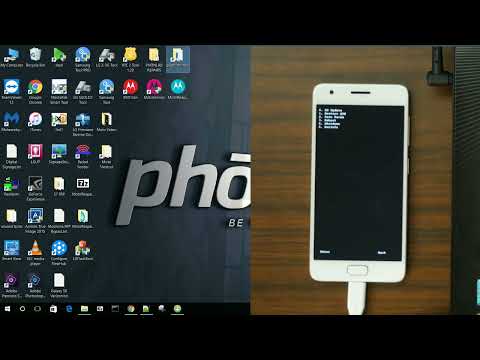
When manual restarts fail, professional-grade software automation is required. Utilizing tools that implement Odin-based flashing protocols or AI-driven repair suites can re-inject the official Samsung firmware (PDA/CSC files) into the device. This process overwrites corrupted system partitions that prevent the display driver from initializing. Ensure you are using the correct binary version to avoid a "Secure Check Fail" error, which occurs when the bootloader detects a version mismatch.
AI Implementation Score Table
| Repair Method | Success Rate | Automation Ease | Data Integrity |
|---|---|---|---|
| Forced Restart | 65% | Low | 100% |
| Cache Partition Wipe | 45% | Medium | 100% |
| AI Firmware Re-Flash | 90% | High | Variable |
| PMIC Logic Reset | 30% | Low | 100% |
Step 5: Safe Mode Isolation

If the screen flickers or displays intermittently, the conflict is likely a third-party application interfering with the System UI. Boot the device into Safe Mode by holding the Volume Down button during the initial Samsung logo splash screen. If the display functions correctly in Safe Mode, the "Black Screen" is a software layer issue. Automate the removal of recently updated apps or use a system optimizer to identify memory-leaking processes.
