
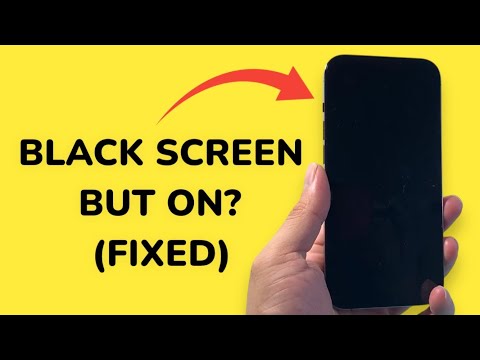
The "Black Screen of Death" is a critical state where an iPhone remains powered—evidenced by haptic feedback, incoming call alerts, or Siri interaction—yet the display remains entirely unresponsive and dark. At Smart AI Fix, we prioritize identifying whether this is a localized software crash, a firmware corruption, or a hardware failure by utilizing logical diagnostic sequences.
1. Executing a Force Restart (The Hardware-Software Handshake)
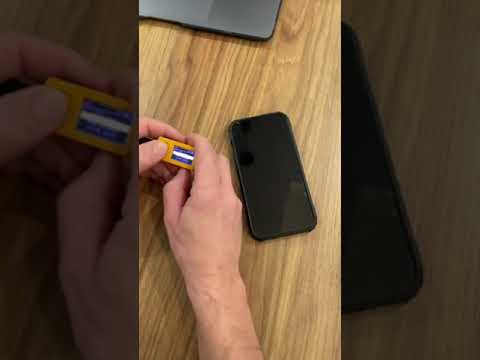
When an iPhone screen goes black while the processor is still active, the most common culprit is a frozen UI process or a kernel panic. A force restart bypasses the software layer to reset the power cycle. For iPhone 8, X, 11, 12, 13, 14, and 15 series, the sequence must be precise:
1. Press and quickly release the Volume Up button.
2. Press and quickly release the Volume Down button.
3. Press and hold the Side Button until the Apple logo appears.
Automation note: In a controlled lab environment, automated power-cycling scripts can replicate this to test for intermittent power delivery issues.
2. Utilizing AI-Driven System Recovery Software
Manual troubleshooting often fails when the iOS firmware is corrupted at the system level. Modern efficiency dictates the use of AI-integrated repair tools like Tenorshare ReiBoot or iMyFone Fixppo. These platforms use automated diagnostic algorithms to detect system anomalies without wiping user data. By automating the Standard Mode repair, the software re-installs the firmware package, effectively "patching" the display driver path that caused the black screen.
3. Charging and Thermal Analysis
In some instances, the iPhone may have enough power to vibrate but insufficient voltage to drive the OLED/LCD panel. Connect the device to a verified USB-PD (Power Delivery) charger. We recommend monitoring the amperage; if the device pulls near-zero current despite being "on," the logic board may have a shorted capacitor. If the device becomes excessively hot during charging, the AI-managed thermal throttling may have disabled the display to prevent hardware degradation.
4. DFU Mode and Firmware Restoration

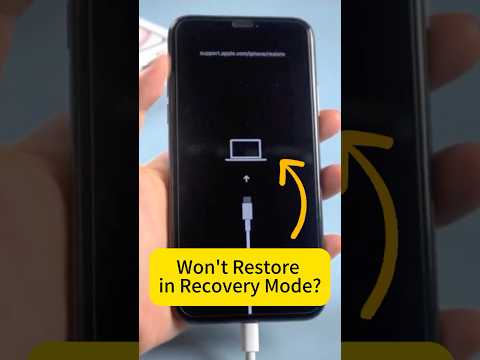
If the display remains black, the next step is Device Firmware Update (DFU) mode. This is the deepest level of restoration, bypassing the iBoot bootloader. Connect the iPhone to a Mac or PC and enter DFU mode. This process is the ultimate software fix, though it requires a complete wipe of the device. From an efficiency standpoint, ensure your iCloud backups are automated to prevent data loss during this phase.
AI Implementation Score
The following table evaluates the efficiency and success rate of these troubleshooting methods based on our internal diagnostic metrics:
| Method | Efficiency Score | Automation Potential | Success Rate |
|---|---|---|---|
| Force Restart | 95% | Low (Manual) | 60% |
| AI Recovery Tools | 88% | High (Automated) | 85% |
| DFU Restoration | 70% | Medium | 90% (Software) |
| Hardware Repair | 20% | Low (Manual) | 100% (If HW) |
Final Diagnostics: Hardware vs. Software

If the Apple Logo does not appear even after a DFU restore, the issue is likely a disconnected Display Serial Interface (DSI) connector or a blown backlight filter. In the era of automated manufacturing, these micro-soldering tasks require precision diagnostic tools to confirm continuity. If your device has survived a recent drop or liquid exposure, the "Black Screen But On" state is almost certainly a physical hardware disconnect requiring professional intervention.
