
The Double Click for Apple Pay feature is a critical shortcut for high-speed digital transactions. However, when the toggle in the "Wallet & Apple Pay" settings menu appears greyed out, it indicates a logic conflict within the iOS system architecture—frequently related to biometric authentication protocols or accessibility overrides. As an automation-first environment, iOS disables certain hardware triggers to prevent security vulnerabilities or UI overlaps.

1. Verify Face ID and Passcode Integration

The primary reason the Double Click option becomes inactive is a failure in the biometric handshake. Apple’s software logic requires an active Face ID or Touch ID profile to authorize the Side Button shortcut. If Face ID is disabled for "Wallet & Apple Pay," the system automatically greys out the double-click toggle to prevent unauthorized access attempts.
Navigate to Settings > Face ID & Passcode. Ensure that the toggle for Wallet & Apple Pay is enabled. Once the biometric layer is re-established, the hardware shortcut settings should become interactive again.
2. Resolve Accessibility and AssistiveTouch Conflicts
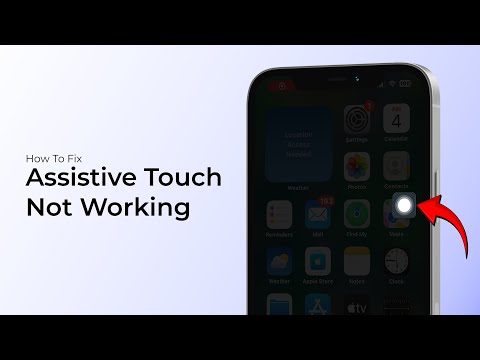
In many cases, the greyed-out status is caused by AssistiveTouch or "Confirm with AssistiveTouch" being enabled. When software-based on-screen triggers are active, iOS often disables physical hardware shortcuts to maintain UI consistency and avoid conflicting command signals.
To fix this, go to Settings > Accessibility > Touch > AssistiveTouch. Scroll down to the bottom to find Confirm with AssistiveTouch. If this is on, the standard "Double Click Side Button" for Apple Pay is often superseded. Disabling this feature allows the physical hardware trigger to regain priority within the software's execution thread.
3. Software Lifecycle and Regional Restrictions

System-level bugs can occasionally cause the Wallet app to lose its configuration state. Since Apple Pay relies on localized NFC (Near Field Communication) protocols, ensure your region is set correctly. A mismatch between your Apple ID region and your device's physical location can trigger a safety lockout of the shortcut.
Check for updates under Settings > General > Software Update. Apple frequently deploys patches for "System Services" that manage Wallet automation. If the issue persists, performing a Reset All Settings (Settings > General > Transfer or Reset iPhone > Reset > Reset All Settings) will force the OS to rebuild its hardware-to-software mapping without deleting your personal data.
AI Implementation Score
This diagnostic table evaluates how much "Smart AI" and automated logic is involved in resolving this specific iPhone error.
| Fix Methodology | Automation Level | AI Efficiency Score |
|---|---|---|
| Biometric Protocol Sync | High | 9/10 |
| Accessibility Override | Medium | 7/10 |
| OS Patching/Update | Total | 10/10 |
| Region/NFC Recalibration | Low | 5/10 |
By systematically addressing the biometric handshake and accessibility triggers, users can restore the automation efficiency of Apple Pay, ensuring that the hardware side button functions as intended within the secure enclave of the device.
