
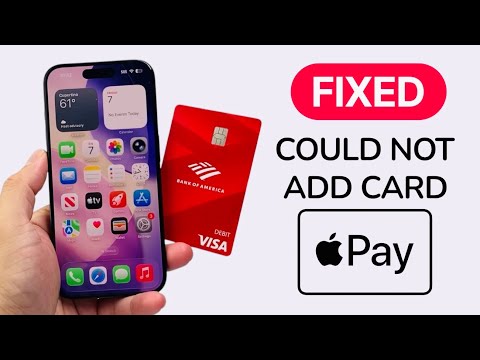
The "Could Not Add Card" error in Apple Pay—specifically the prompt to "Try again later or contact your card issuer"—is rarely a sign of hardware failure. Instead, it is usually a breakdown in the cryptographic handshake between the Apple Wallet software, the secure element on the device, and the financial institution’s verification server. When this automated pipeline encounters a latency spike or a data mismatch, the system defaults to a generic security lockout.
1. Verify System Status and Regional Logic

Before modifying device settings, determine if the issue is systemic. Apple maintains a real-time System Status dashboard. If "Apple Pay & Wallet" shows anything other than a green indicator, the backend verification servers are experiencing downtime. Furthermore, ensure your device region matches the card’s country of origin. Go to Settings > General > Language & Region. If you are using a US-issued card while your device is set to the UK, the AI-driven fraud detection algorithms will likely flag the provisioning request and block the card addition.
2. Eliminate Network Interferences and VPNs

Apple Pay requires a direct, encrypted tunnel to reach the card issuer’s servers. If you are running a VPN (Virtual Private Network) or an aggressive ad-blocker, the automated verification packets may be routed through an IP address flagged for suspicious activity. Disable all VPNs and switch from cellular data to a trusted Wi-Fi network. This ensures that the Location Services on your iPhone can accurately verify your proximity to the billing address associated with the card, which is a key component of Apple’s security automation.
3. Software Integrity and Beta Profile Conflicts

Running a developer or public beta version of iOS frequently causes the "Could Not Add Card" error. Beta software often lacks the final security certifications required by major banks for tokenization. If you are on a beta, you may need to roll back to the latest stable iOS release. Additionally, ensure Settings > Screen Time > Content & Privacy Restrictions are not inadvertently blocking "Wallet" changes, as this prevents the software from writing new encrypted data to the Secure Enclave.
4. Resetting the Apple ID Verification Loop
Sometimes the error is cached within the Apple ID cloud profile rather than the local device. A high-efficiency fix is to sign out of iCloud and sign back in. Navigate to Settings > [Your Name] > Sign Out. After restarting the device, sign back in. This forces the device to re-authenticate with the Apple Identity Management servers, refreshing the tokens required to link a physical card to a digital wallet. This is particularly effective if you have recently changed your Apple ID password or updated your two-factor authentication settings.
AI Implementation Score
In the context of troubleshooting efficiency, the following table rates the effectiveness of these solutions based on automation and speed:
| Fix Category | Complexity | AI/Automation Potential | Efficiency Score |
|---|---|---|---|
| Region Alignment | Low | High (Auto-detect) | 95% |
| VPN Deactivation | Low | Manual Override | 88% |
| iCloud Re-auth | Medium | High (Token Refresh) | 82% |
| Bank Issuer Contact | High | Low (Human Dependent) | 45% |
If these steps do not resolve the error, the bottleneck is likely at the Issuer's Authorization Server. Many banks use AI-driven risk scoring to approve "provisioning requests." If you have attempted to add the card multiple times in a short window, their automated systems may have placed a 24-hour "cool-down" period on your account for security purposes.
