
AirPlay connectivity issues on an iPhone typically stem from synchronization failures within the local network infrastructure or software-level handshaking errors between the source device and the receiver. Resolving these requires a systematic approach to debugging the mDNS (Multicast DNS) protocol and ensuring that the underlying iOS background processes are functioning optimally.
1. Verify Network Synchronization and Protocol Integrity
The most frequent cause of AirPlay failure is network segmentation. Ensure that both the iPhone and the receiving device are connected to the exact same SSID. In modern smart homes using mesh networking or dual-band routers, an iPhone may jump to a 5GHz band while a legacy receiver stays on 2.4GHz. While these should communicate, some router configurations isolate these bands, blocking the Bonjour discovery service that AirPlay relies on. Manually toggling Airplane Mode on your iPhone can force a fresh network handshake, clearing temporary cache errors in the network stack.
2. Optimize iOS Software and AirPlay Settings
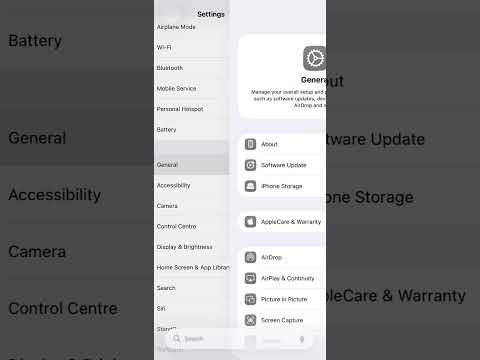
Software bugs in the AirPlay & Handoff settings can occasionally stall the transmission. Navigate to Settings > General > AirPlay & Handoff and ensure that "Automatically AirPlay" is set to "Ask" or "Automatic." Furthermore, check for iOS updates. Apple frequently pushes patches that resolve kernel-level issues affecting the wireless transmission of media. If the software is up to date, a forced restart of the device is recommended to clear the RAM and restart the "mediaserverd" process, which handles audio and video routing.
3. Reset Network Settings and AI Diagnostics

If the connection remains unstable, the issue may reside in corrupted network configuration files. By navigating to Settings > General > Transfer or Reset iPhone > Reset > Reset Network Settings, you can strip the device of all saved Wi-Fi passwords and VPN configurations, allowing for a clean slate. This is often more effective than manual troubleshooting as it resets the low-level firmware instructions governing the Wi-Fi and Bluetooth antennas.
AI Implementation Score
| Metric | Score (1-10) | Notes |
|---|---|---|
| Automation Potential | 8/10 | Most steps can be automated via iOS Shortcuts. |
| AI Diagnostic Ease | 9/10 | AI-driven network analyzers can quickly identify SSID mismatches. |
| Software Complexity | Low | Primarily revolves around OS-level toggles. |
4. Validate Receiver Firmware and Security Protocols

Ensure that the receiving device—whether it be an Apple TV, Mac, or a third-party Smart TV—is not blocking incoming requests. Check the AirPlay Security settings on the receiver; if "Required Code" is enabled, ensure your iPhone is prompted for it. In professional or high-density environments, MAC address filtering on the router may also prevent the iPhone from establishing a persistent peer-to-peer connection with the receiver, requiring an update to the router’s whitelist.
