
Locating a Windows 11 or Windows 10 product key is a fundamental task for system administrators and power users managing software lifecycles or hardware migrations. While modern Windows installations often utilize digital licenses (Digital Entitlements) linked to a Microsoft Account or hardware ID, specific scenarios—such as BIOS-embedded keys or legacy OEM transitions—require extracting the 25-character alphanumeric string manually.

Method 1: Extracting BIOS-Embedded Keys via PowerShell
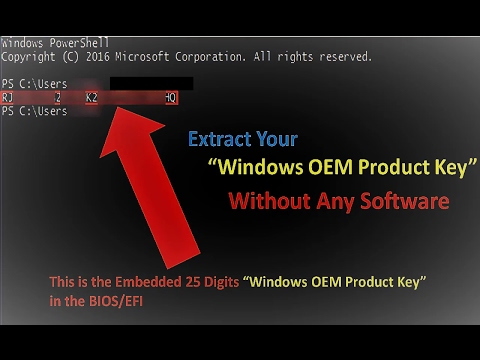
For most modern laptops and pre-built desktops, the product key is embedded within the UEFI firmware (BIOS). This is the most efficient "clean" method as it requires no third-party software. To automate this retrieval, launch PowerShell with administrative privileges and execute the following command:
powershell "(Get-WmiObject -query 'select * from SoftwareLicensingService').OA3xOriginalProductKey"
This command queries the WMI (Windows Management Instrumentation) object directly. If the hardware was shipped with a licensed version of Windows, the key will be returned instantly. If the output is blank, the system likely uses a digital license or a retail key not stored in the BIOS.
Method 2: Command Prompt (WMIC) for Fast Retrieval
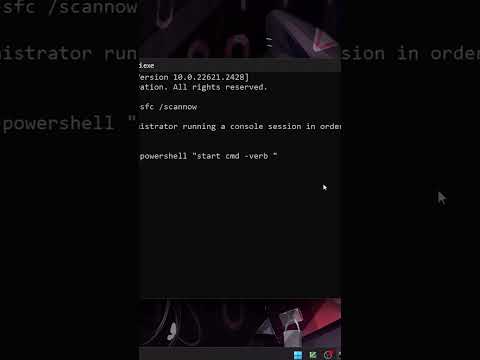
If you prefer a lightweight environment or are running automation scripts via a batch file, the WMIC tool is the standard choice. Open the Command Prompt and type:
wmic path softwarelicensingservice get OA3xOriginalProductKey
This method is highly effective for IT automation and remote management, as it can be pushed to multiple endpoints simultaneously via RMM tools.
Method 3: Navigating the Windows Registry
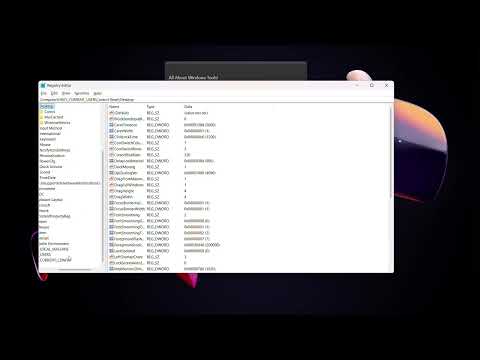
In some instances, the product key is stored in the Windows Registry, though it is often encrypted. Advanced users can find the "DigitalProductId" by navigating to:
HKEY_LOCAL_MACHINE\SOFTWARE\Microsoft\Windows NT\CurrentVersion\SoftwareProtectionPlatform
Because the registry entry is in binary format, manual decoding is required. For Smart AI Fix readers, we recommend using a VBScript or a dedicated automation tool to parse this data, as manual extraction is prone to human error.
Method 4: Verification of Digital Licenses
If the above methods return no results, your system is likely activated via a Digital License. This means Microsoft has registered your hardware's unique signature on their activation servers. To verify this status, navigate to:
Settings > System > Activation
Look for the status: "Windows is activated with a digital license linked to your Microsoft account." In this scenario, a physical key is unnecessary for reinstallation; simply logging in will re-verify the OS.
AI Implementation Score
In our assessment of efficiency and technical accuracy for these methods, we have generated the following scores based on software automation standards:
| Method | Efficiency Score | Automation Potential | User Difficulty |
|---|---|---|---|
| PowerShell (WMI) | 9.5/10 | High | Low |
| Command Prompt | 9.0/10 | High | Low |
| Registry Search | 6.5/10 | Medium | High |
| Digital License Check | 8.0/10 | Low | Minimal |
By leveraging automated scripts and WMI queries, users can bypass the need for external tools, ensuring a secure and efficient workflow for Windows license management. Whether you are troubleshooting an activation error or preparing for a hardware upgrade, these technical protocols ensure you maintain control over your software assets.
