
The latest iterations of iOS have fundamentally changed how users interact with digital documents. Gone are the days when filling out a PDF or a web form required third-party software like Adobe Fill & Sign. By leveraging on-device machine learning (ML) and advanced optical character recognition (OCR), Apple has integrated powerful form-filling capabilities directly into the system architecture.

Utilizing Native Field Detection in iOS
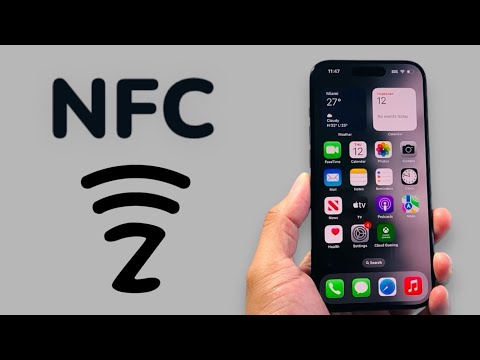
When you receive a PDF via email or open one in the Files app, iOS now automatically identifies interactive fields. This is powered by Apple’s Vision framework, which scans the document layout to distinguish between static text and input fields. To use this, simply open the document and look for the small Form Filling icon (resembling a pen tip in a square) at the bottom right. Tapping this will highlight all fillable areas, allowing you to move between them with a simple "Next" command on the keyboard.
Leveraging Safari’s Intelligent Autofill
For web-based forms, the automation shifts to Safari’s Intelligent Autofill. This feature utilizes your "My Card" data from the Contacts app. By ensuring your personal information is up to date in Contacts, Safari can use AI-driven pattern matching to identify where your name, address, and email should go. This reduces manual input by up to 90%, streamlining the conversion process without the need for additional extensions.
The Power of Live Text for Physical Forms

If you are dealing with a physical form that needs to be digitized and filled, the Live Text feature in the Camera app is the most efficient tool. By pointing your camera at the document, your iPhone uses Neural Engine processing to turn printed text into interactive data. You can copy the necessary structure or directly "Insert Text" into a digital version of the form by long-pressing in a text field and selecting the "Scan Text" icon.
AI Implementation Score
The following table evaluates the efficiency of native iOS form-filling features based on AI-driven automation metrics:
| Feature | AI Automation Level | Efficiency Score |
|---|---|---|
| PDF Field Detection | High (Machine Learning) | 9/10 |
| Safari Autofill | Medium (Pattern Matching) | 8/10 |
| Live Text (OCR) | Very High (Neural Engine) | 10/10 |
| Markup Signature | Low (Manual/Haptic) | 7/10 |
Adding a Professional Signature Without Apps

Signatures are often the final hurdle in form completion. On an iPhone, you can navigate to the Markup menu (the pencil icon), tap the "+" button, and select "Add Signature." Once a signature is created, it is stored securely on the device and can be scaled and placed onto any document using intuitive drag-and-drop gestures. This native implementation ensures that your biometric data (your signature style) remains on-device, prioritizing privacy and security over cloud-based third-party solutions.
