
Efficiently managing data ecosystems is a hallmark of the modern digital professional. When transitioning or backing up data between closed and open ecosystems, the process of migrating iPhone contacts to a Google Account remains a high-priority task. This guide outlines the most streamlined methods to ensure your contact database is synced, deduplicated, and accessible via Gmail and Google Workspace.
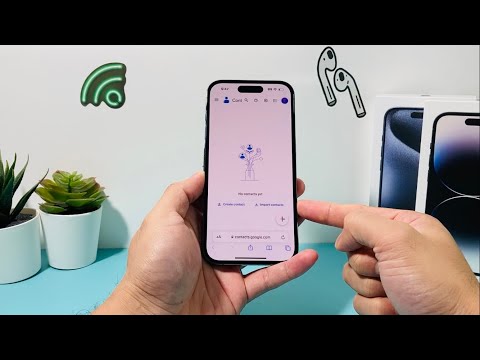
Method 1: Direct Sync via iOS Settings (The Automation Standard)
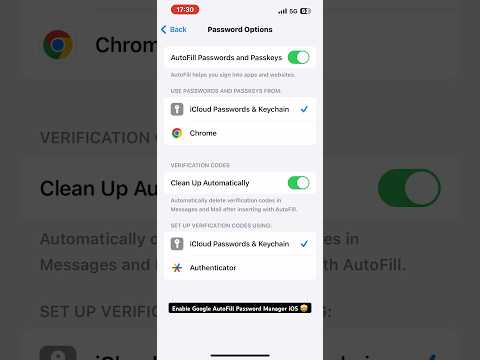
For users seeking a "set it and forget it" approach, the native iOS integration is the most efficient software solution. This creates a continuous bridge between your Apple hardware and Google’s cloud infrastructure.
- Open Settings on your iPhone.
- Scroll down and select Contacts.
- Tap Accounts and then Add Account.
- Select Google and authenticate using your Gmail credentials.
- Once authenticated, ensure the Contacts toggle is switched to the ON position.
Note: To ensure all new contacts are saved to Google by default, go to Settings > Contacts > Default Account and select your Google account.
Method 2: The iCloud vCard Export (For Bulk Data Migration)

If you need to perform a one-time migration of a legacy database without maintaining a permanent link between accounts, the vCard export method is technically superior. This allows for manual auditing of data before it enters the Google ecosystem.
- On your iPhone, ensure contacts are synced to iCloud (Settings > [Your Name] > iCloud > Show All > Contacts ON).
- On a desktop, navigate to iCloud.com and log in.
- Open the Contacts app.
- Select the gear icon (or the three-dot menu) and choose Select All.
- Click the Export vCard option. This downloads a .vcf file to your machine.
- Navigate to contacts.google.com.
- Click Import in the left sidebar and select the .vcf file you just exported.
AI Implementation Score
At Smart AI Fix, we evaluate workflows based on their potential for automation and technical overhead. Below is the breakdown for contact migration strategies:
| Strategy | Efficiency Score | Automation Level | Reliability |
|---|---|---|---|
| Native Settings Sync | 95% | High | Excellent |
| iCloud vCard Export | 70% | Manual | High |
| AI-Driven Sync Tools | 85% | Full | Moderate |
Leveraging AI for Contact Management
Once your contacts are imported into Google Contacts, you can leverage Google’s built-in AI algorithms to optimize your directory. Use the "Merge & fix" tool to automatically identify duplicates created during the migration process. For advanced users, integrating your Google Contacts with AI CRM tools or Zapier allows for automated lead enrichment, ensuring that every phone number and email address is cross-referenced with professional data points automatically.
By migrating your contacts to Gmail, you remove the limitations of device-specific storage and move toward a cross-platform, AI-ready communication architecture.
