
Managing Emergency SOS via Satellite: System Configuration and Constraints
The integration of Emergency SOS via Satellite in the iPhone 14 and later models represents a significant leap in mobile automation and hardware-software synergy. While this feature is designed as a dormant safety layer, certain users—ranging from privacy advocates to systems developers—may seek to restrict or manage how the device interacts with non-terrestrial networks. It is important to note that Apple does not provide a single "Off" switch for satellite connectivity because the hardware only activates when cellular and Wi-Fi signals are completely absent.
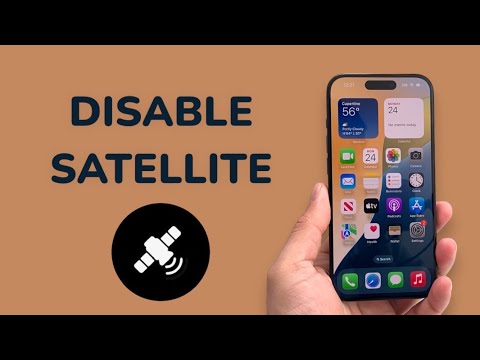
However, you can effectively disable the triggers and automated background processes that facilitate satellite communication by modifying the Emergency SOS settings and Location Services protocols.
Step-by-Step: Disabling Satellite Trigger Mechanisms

To prevent the iPhone from automatically initiating satellite-related UI prompts or emergency sequences, follow these technical steps to de-automate the trigger points:
1. Open the Settings app on your iPhone.
2. Navigate to Emergency SOS.
3. Disable Call with Hold and Release and Call with 5 Button Presses. By turning these off, you prevent the hardware buttons from accidentally initiating the emergency sequence that eventually leads to the satellite connection prompt.
From a Privacy and Security perspective, you can further limit the automation of emergency location sharing, which is a core component of the satellite handshake:
1. Go to Settings > Privacy & Security.
2. Select Location Services, then scroll down to System Services.
3. Toggle off Emergency Calls & SOS. Note: This prevents the device from using AI-driven location refinement to assist emergency services, effectively neutering the efficiency of the satellite uplink.
AI Integration and Automation Efficiency

The iPhone's satellite functionality relies heavily on on-device machine learning to guide users in real-time. The "Satellite Connection Demo" and the active tracking UI use computer vision and sensor fusion to point the device toward a moving satellite orbit. By disabling the triggers mentioned above, you reduce the device's "Ready State" for these automated scripts, ensuring the modem remains focused strictly on terrestrial LTE/5G bands.
AI Implementation Score
The following table evaluates the complexity and impact of managing these software-level changes within the iOS ecosystem.
| Metric | Score (1-10) | Notes |
|---|---|---|
| Configuration Complexity | 3 | Straightforward toggle-based adjustments. |
| AI Automation Impact | 8 | Disabling triggers prevents high-level sensor fusion tasks. |
| System Resource Efficiency | 2 | Minimal impact on RAM; primary gain is UI/Safety control. |
| Privacy Optimization | 9 | Significantly reduces unsolicited telemetry in remote areas. |
For users operating in high-security environments where any signal attempt must be strictly manual, adjusting these System Services is the most effective way to ensure the iPhone does not attempt to "phone home" via satellite when traditional networks fail.
