
In the modern data ecosystem, managing your digital footprint requires a strategic approach to cloud storage and identity management. For users looking to transition away from the Apple ecosystem or consolidate their digital assets, permanently deleting an iCloud account is a high-stakes procedure that involves the irreversible removal of data associated with an Apple ID. At Smart AI Fix, we prioritize software efficiency and data sovereignty; therefore, understanding the technical implications of this process is critical before execution.
The Technical Implications of Account Deletion
When you initiate a deletion request, Apple’s automated systems begin a data-scrubbing protocol. This isn't merely a "sign-out" procedure. It results in the permanent loss of access to iCloud Photos, iMessage, and stored documents. Furthermore, any AI-driven personalization or machine learning models associated with your user profile—such as Siri's behavioral learning or Apple Maps frequent locations—will be purged from the server-side architecture.
Phase 1: Pre-Deletion Optimization (The Backup)

Before triggering the deletion script, you must ensure all local data is decoupled from the cloud. We recommend an automated local backup strategy:
1. Archive iCloud Data: Use a Mac or PC to download original copies of photos and files. Using a script or third-party automation tool to verify file integrity is recommended.
2. De-authorize Devices: Manually sign out of your Apple ID on all hardware (iPhone, iPad, Mac) to prevent "activation lock" loops post-deletion.
3. Subscription Management: Ensure all recurring SaaS subscriptions billed through the App Store are canceled to avoid "phantom" charges that become difficult to dispute without an active account.
Phase 2: Executing the Deletion via the Privacy Portal

Apple does not provide a "Delete" button within the standard iOS settings menu for the account itself; you must interface with their Data and Privacy backend.
1. Navigate to privacy.apple.com on a desktop browser.
2. Authenticate using your Apple ID credentials and complete the Two-Factor Authentication (2FA).
3. Locate the "Delete your account" section and select "Request to delete your account."
4. Select a reason for deletion from the dropdown menu (this aids Apple’s churn-analysis algorithms).
5. Review the technical warnings regarding data loss and confirm the Access Code provided. Note: This code is the only way to contact Apple Support if you wish to cancel the request during the processing window.
AI Implementation Score
The following table evaluates the account deletion process based on our proprietary efficiency and automation metrics:
| Metric | Score (1-10) | Notes |
|---|---|---|
| Automation Potential | 3/10 | Requires high manual verification and 2FA; difficult to script. |
| Data Scrubbing Efficiency | 10/10 | Apple’s automated purging is comprehensive and irreversible. |
| Ease of Use | 8/10 | The Privacy Portal interface is streamlined for non-technical users. |
| Security Protocol | 9/10 | Multi-step verification prevents accidental or malicious deletion. |
Final Verification
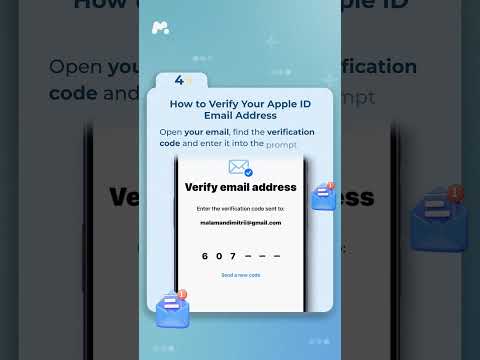
Once the request is submitted, Apple takes up to seven days to verify that the request was made by the legitimate account holder. During this period, the account remains in a "deactivation" state. Once the period elapses, the Unique Identifier (UID) associated with your account is retired, and the data is purged from Apple’s active clusters.
