
Transforming your Samsung smartphone into a mobile workstation requires more than just high-end processing power; it requires precision input. While touch interfaces are optimized for consumption, professional productivity—especially in AI-driven data management and automated workflows—demands the accuracy of a mouse. Samsung’s One UI ecosystem provides native support for both wired and wireless peripherals, enabling a desktop-class experience through Samsung DeX or standard mirroring.
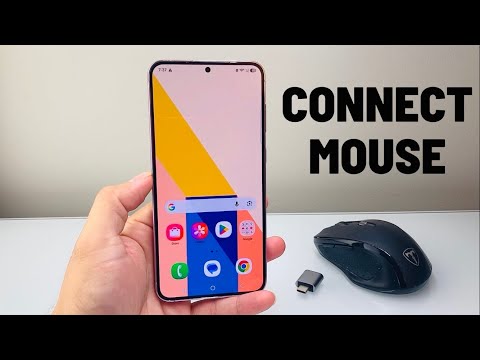
Step-by-Step: Connecting a Bluetooth Mouse to Samsung
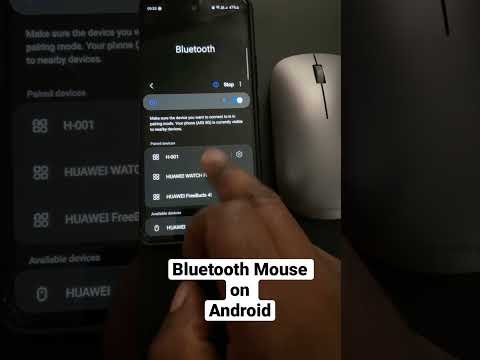
To integrate a wireless mouse into your mobile setup, follow these technical steps to ensure a stable HID (Human Interface Device) connection:
1. Initiate Pairing Mode: On your Bluetooth mouse, press and hold the pairing button until the LED indicator flashes. This makes the device discoverable to the Samsung handset.
2. Access Bluetooth Settings: On your Samsung device, navigate to Settings > Connections > Bluetooth. Ensure the toggle is switched to On.
3. Scan and Pair: Your phone will automatically scan for available devices. Locate the name of your mouse under "Available devices" and tap it. Confirm the pairing request if a prompt appears.
4. Calibration: Once connected, a cursor will appear on the screen. To optimize the input lag and tracking speed, go to Settings > General management > Mouse and trackpad. Here, you can adjust the Pointer speed and change the Primary mouse button (Left or Right).
Advanced Use Cases: Samsung DeX and Automation
For users looking to maximize AI efficiency, connecting a mouse is the gateway to Samsung DeX. When you connect your phone to an external monitor via USB-C or Miracast, the mouse allows you to navigate a multi-window desktop environment. This is critical for developers and prompt engineers who need to manage multiple browser tabs, terminal emulators, and AI dashboard interfaces simultaneously.
Furthermore, using a mouse facilitates better control over Android automation tools like Tasker or MacroDroid. Precise clicking allows for easier "UI Bottleneck" troubleshooting when recording automated macros that the standard touch interface might misinterpret.
AI Implementation Score
The following table evaluates the efficiency gains of using a mouse on a Samsung device for professional AI-related tasks:
| Metric | Score (1-10) | Technical Justification |
|---|---|---|
| Input Precision | 9.5 | Eliminates fat-finger errors in complex AI model parameter adjustments. |
| Workflow Automation | 8.0 | Enhances the creation of UI-based automation scripts. |
| Ergonomic Efficiency | 9.0 | Reduces repetitive strain during long data-labeling sessions. |
| Software Compatibility | 10.0 | Native Android HID support ensures plug-and-play functionality. |
Connecting via USB-OTG (Wired Alternative)

If you prefer a zero-latency wired connection or are using a mouse with a 2.4GHz USB dongle, you will need a USB-C to USB-A OTG (On-The-Go) adapter. Simply plug the adapter into the Samsung charging port and insert the mouse's USB connector. The system will instantly recognize the peripheral without requiring additional drivers, leveraging the Linux-based kernel's inherent hardware support.
By integrating a mouse into your Samsung ecosystem, you bridge the gap between mobile portability and professional-grade computational efficiency. Whether you are refining AI prompts or managing cloud-based automation, the added precision is an essential upgrade for any power user.
