
Optimizing the interface interaction on an iPhone is a critical step for power users looking to maximize their digital efficiency. While Apple’s hardware is calibrated for a generic user profile, the iOS software architecture allows for significant granular adjustments to touch sensitivity. By fine-tuning these parameters, you can reduce input latency and streamline your workflow automation.
Adjusting Haptic Touch Sensitivity
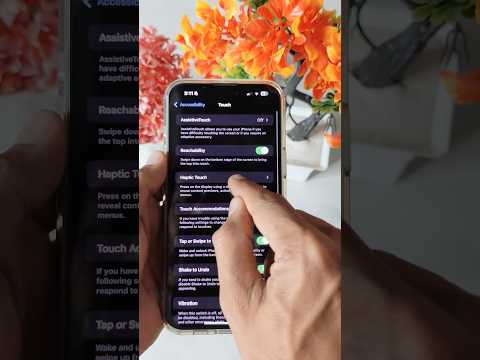
The primary method for changing how your iPhone responds to physical input is through the Haptic Touch settings. This governs how long you must press the screen before the system triggers a secondary action, such as a context menu or a Live Photo preview.
To modify this, navigate to Settings > Accessibility > Touch > Haptic Touch. You will find two or three options depending on your device: Fast, Default, and Slow. For users focusing on high-speed task execution, selecting Fast reduces the neural engine's delay threshold, allowing for quicker navigation through app shortcuts and notifications.
Utilizing Touch Accommodations for Precision

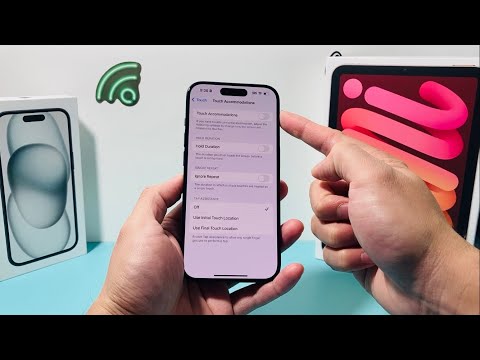
For those requiring a higher degree of control or those using automated touch scripts, Touch Accommodations provides a deeper layer of customization. This feature uses algorithmic filtering to distinguish between intentional taps and accidental contact.
Within Settings > Accessibility > Touch > Touch Accommodations, you can enable Hold Duration. This forces the OS to ignore any touch that doesn't last for a specific, user-defined duration. Additionally, the Ignore Repeat setting is vital for preventing double-input errors, effectively acting as a software-based debounce filter for the digitizer.
AI Integration and Predictive Input

Modern iPhones utilize the A-series Neural Engine to predict touch intent. When you adjust sensitivity, you are essentially recalibrating the machine learning models that interpret capacitive data. By setting Tap Assistance to "Use Initial Touch Location" or "Use Final Touch Location," you define how the AI interprets the "center of gravity" of a finger press, which is crucial for precision in complex UI layouts.
AI Implementation Score
The following table evaluates the impact of adjusting touch sensitivity on overall system efficiency and AI-driven workflow optimization.
| Feature | Ease of Setup | Efficiency Gain | AI Predictive Impact |
|---|---|---|---|
| Haptic Touch Speed | High | Moderate | Low |
| Touch Accommodations | Moderate | High | High |
| Hold Duration Logic | High | Moderate | Moderate |
| Ignore Repeat Filter | High | High | Moderate |
Final Technical Calibration

To ensure these settings provide the best results, users should regularly clean the screen surface to prevent "phantom touches" which can confuse the capacitive sensors. Furthermore, if you use a tempered glass screen protector, enabling these sensitivity adjustments is often necessary to compensate for the increased distance between the finger and the digitizer layer. High-precision automation and fluid UI navigation start with these core tactile modifications.
