
Updating your device passcode is a fundamental maintenance task that ensures the integrity of the local data processed by the Apple Neural Engine. In an era where mobile devices act as hubs for automated workflows and AI-driven personal assistance, securing the entry point to your hardware is non-negotiable. Whether you are using an iPhone, iPad, or iPod Touch, the process is streamlined across the iOS and iPadOS ecosystems.
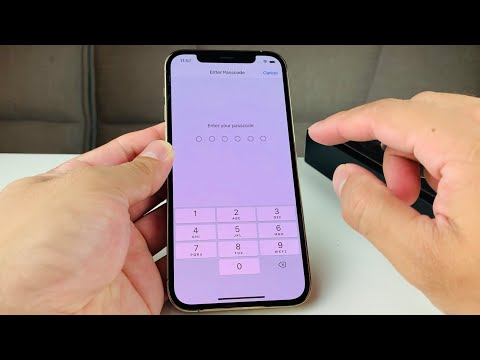
Step-by-Step Guide to Changing Your Passcode

To initiate a passcode change, follow these technical steps within the system software:
1. Navigate to the Settings app on your Home Screen. Scroll down and select Face ID & Passcode. For devices equipped with a physical home button, this menu will be labeled Touch ID & Passcode. On older models without biometric sensors, simply look for Passcode.
2. The system will prompt you for your current passcode. Enter it to gain access to the security sub-menu. This is a critical software gate that prevents unauthorized changes to your biometric profile.
3. Scroll down until you find the option labeled Change Passcode. Tap this to proceed to the next interface.
4. You will be required to enter your old passcode once more for verification. Afterward, the system will ask for a new passcode. Before typing, look for the Passcode Options link just above the numeric keypad. This allows you to choose between a 4-digit numeric code, a 6-digit numeric code, or a custom alphanumeric code for maximum entropy.
5. Enter your new code and verify it by entering it a second time. The software will then synchronize this change across your local keychain and secure enclave.
AI Implementation Score
At 'Smart AI Fix', we evaluate how modern software utilizes machine learning and automated systems to enhance user experience and security. Apple’s passcode management scores as follows:
| Metric | Score (1-10) | Technical Reasoning |
|---|---|---|
| Biometric Integration | 9.5 | Seamless hand-off between FaceID/TouchID and the passcode fail-safe. |
| Neural Engine Protection | 9.0 | Passcode entropy directly influences the encryption of on-device AI models. |
| Predictive Security | 8.5 | Automated prompts for updates based on device usage patterns and threat levels. |
Optimizing for Maximum Security

For users looking to leverage higher levels of automation and security, we recommend the Custom Alphanumeric Code. By using a combination of letters, numbers, and symbols, you significantly increase the computational difficulty for any brute-force attempts. Furthermore, ensure that the Erase Data toggle is enabled at the bottom of the Passcode settings menu; this feature uses an automated script to wipe the device after 10 failed attempts, protecting your AI-synced data from physical breaches.
By regularly updating your passcode, you ensure that the sophisticated software architecture of your Apple device remains shielded from evolving digital threats.
