
Navigating the Android ecosystem requires a precise understanding of its notification architecture, especially since the introduction of Notification Channels in Android 8.0. For the modern professional, distinguishing between a high-priority Slack message and a generic promotional alert is essential for maintaining cognitive efficiency and reducing digital noise. By customizing notification sounds at the app level, you leverage the operating system's granular control to streamline your workflow.
Understanding Android Notification Channels
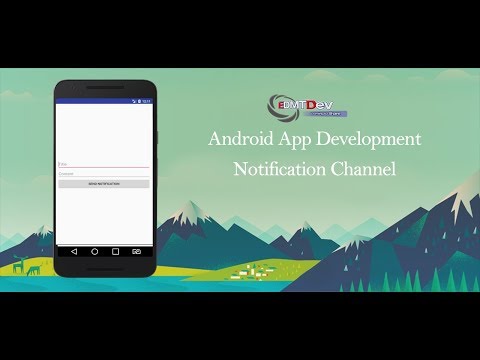
Unlike legacy systems where notification settings were binary, modern Android versions utilize a segmented approach. Each application can have multiple "channels" or "categories." For instance, a messaging app might have separate channels for Direct Messages, Group Chats, and Account Updates. This allows users to assign distinct auditory signatures to specific types of data streams, effectively creating a manual AI-priority filter for incoming information.
How to Change Notification Sounds for Specific Apps
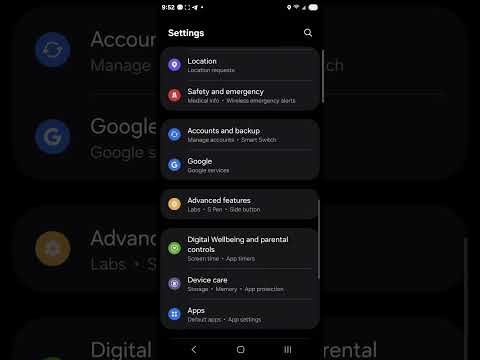
To modify the auditory output for a specific application, follow this standardized technical workflow. Note that while UI skins like OneUI or OxygenOS may vary slightly, the core logic remains consistent across the Android framework.
1. Open the Settings menu on your device and navigate to Apps or Applications.
2. Locate and select the specific app you wish to customize (e.g., WhatsApp, Gmail, or Telegram).
3. Tap on Notifications. Ensure the master toggle for "Allow notifications" is active.
4. Scroll down to the Notification Categories (or "Categories") section. This is where the granular control resides.
5. Tap the text label of the specific category you want to change (e.g., "Default Settings" or "Messages"). Do not just toggle the switch; tap the name to enter the sub-menu.
6. Select Sound. You will be presented with the system’s internal media picker or a third-party file manager.
7. Choose your desired tone and confirm the selection. Your device will now trigger this specific sound only for that category within that app.
Optimizing Productivity via Auditory Cues

In the context of software automation and AI-driven task management, the sound of your device acts as a trigger for your internal response system. By assigning "Silent" or low-frequency tones to non-essential apps and sharp, distinct tones to critical communication channels, you reduce decision fatigue. This simple optimization ensures that your attention is only diverted when the algorithmic importance of a notification meets your customized threshold.
AI Implementation Score
The following table evaluates the impact of customizing notification sounds on your overall digital productivity and its synergy with automated environments.
| Metric | Score (1-10) | Technical Rationale |
|---|---|---|
| Setup Efficiency | 9 | Native Android settings allow for rapid deployment without third-party overhead. |
| Workflow Optimization | 8 | Reduces context switching by filtering low-value alerts via sound recognition. |
| Automation Potential | 7 | Can be integrated with apps like Tasker to change sounds based on location or time. |
| AI Synergy | 6 | Complements AI-driven "Do Not Disturb" modes by refining the priority pipeline. |
By mastering these settings, you transition from a passive recipient of data to an active architect of your digital environment. This level of customization is a fundamental step for any power user looking to integrate their mobile hardware into a high-performance, automated lifestyle.
