
Optimizing the interface of your Apple Watch is more than a stylistic choice; it is a workflow enhancement. Whether you are leveraging the Infograph for maximum data density or a minimalist California face for focus, knowing how to switch and automate these faces is key to WatchOS efficiency.
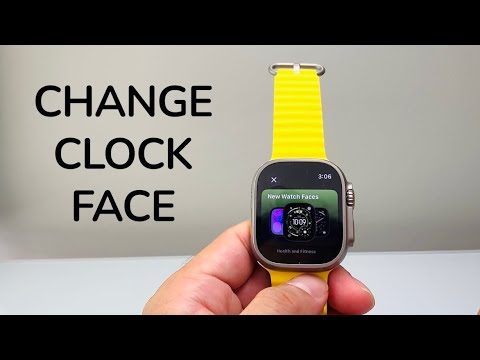
Method 1: Direct On-Device Interaction
The most immediate way to cycle through your pre-configured gallery is via direct touch. To change the face directly on the Apple Watch, follow these steps:
1. Wake the display by raising your wrist or tapping the screen.
2. Swipe horizontally from the left or right edge of the display. This will cycle through your active collection.
3. To customize a specific face, Long Press (Haptic Touch) the screen until the "Edit" prompt appears. Tap Edit to modify complications, colors, and dial density using the Digital Crown.
Method 2: Synchronization via the iPhone Watch App
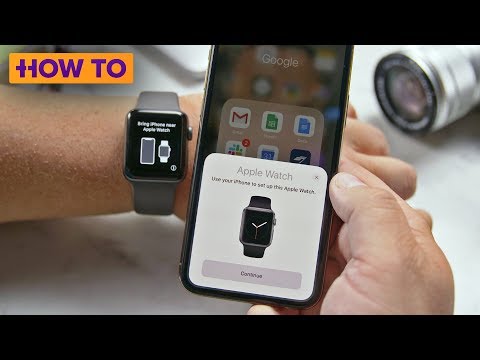
For a more granular software experience, using the Watch App on your iPhone allows for high-level management of your "Face Gallery." This is the preferred method for users looking to manage bulk complications and third-party AI-driven data integrations.
1. Open the Watch App on your paired iPhone.
2. Navigate to the Face Gallery tab at the bottom to discover new designs curated by Apple.
3. Select a face, configure your Complications (such as weather, calendar, or AI shortcuts), and tap Add.
4. In the My Watch tab, you can reorder your faces. The order you set here determines the swipe sequence on the hardware.
Method 3: Automating Faces with Shortcuts and AI

True efficiency in the Apple ecosystem comes from automation. You can program your Apple Watch to change faces automatically based on your location, time of day, or Focus Mode. This removes the manual overhead of switching from a "Work" face to a "Gym" face.
1. Open the Shortcuts app on your iPhone.
2. Tap Automation and then the + icon.
3. Choose a trigger (e.g., Time of Day or Arriving at Location).
4. Search for the action "Set Watch Face".
5. Select the specific face you want to activate when the condition is met. This ensures your OS adapts to your environment without manual input.
AI Implementation Score
The following table evaluates the efficiency and technological integration of the Apple Watch face system:
| Metric | Score (1-10) | Technical Reasoning |
|---|---|---|
| Automation Potential | 9/10 | Integrates seamlessly with iOS Shortcuts and Focus Filters. |
| UI/UX Friction | 2/10 | Minimal friction; haptic feedback ensures precise selection. |
| Data Synergy | 8/10 | Complications allow real-time AI data streaming (Siri, Weather, Heart Rate). |
| Software Stability | 10/10 | WatchOS core processes prioritize face rendering and background refresh. |
By mastering these three methods—manual switching, app-based management, and Shortcuts automation—you transform your wearable from a simple timepiece into a dynamic, AI-enhanced productivity hub.
