
Customizing the user interface of an iOS device has historically been restricted by Apple’s sandboxed environment. However, leveraging the Shortcuts app—a powerful automation tool integrated into the ecosystem—allows users to bypass standard naming conventions. At Smart AI Fix, we view these manual adjustments as the precursor to fully autonomous UI generation. By utilizing logical triggers, you can effectively rename any application and swap icons to streamline your mobile workflow.
The Technical Logic Behind Renaming iOS Apps
iOS does not permit the direct editing of an application's binary name within the SpringBoard. Instead, we create a proxy shortcut. This shortcut acts as an intermediary script: when executed, it triggers a command to launch the target application. By placing this script on your Home Screen, you gain control over the metadata—specifically the display name and glyph/icon imagery.
Step-by-Step Implementation via Shortcuts

To begin this process of software personalization and interface optimization, follow these technical steps:
1. Initialize the Environment: Open the Shortcuts app on your iPhone. Tap the "+" (Plus) icon in the top-right corner to initiate a new automation sequence.
2. Define the Action: Tap "Add Action". In the search field, type "Open App" and select the corresponding scripting action. This command tells iOS to locate the specific bundle ID of your chosen application.
3. Target the Application: Tap the blue "App" variable within the script line and select the application you wish to rename (e.g., changing "Instagram" to "Social Feed").
4. Modify Metadata: Tap the "i" (Information) icon or the share arrow at the bottom of the screen, then select "Add to Home Screen."
5. Execute Renaming: Under the "Home Screen Name and Icon" section, tap the text field. Enter your new desired name. To change the icon, tap the adjacent image box and select a file from your Files or Photos directory.
6. Deployment: Tap "Add." The new aliased version of the app will now appear on your Home Screen. You can then move the original application to the App Library to reduce visual clutter and maintain a minimalist, high-efficiency interface.
AI Implementation Score
Below is an assessment of how this customization process aligns with modern automation and AI-driven efficiency standards.
| Metric | Score (1-10) | Notes |
|---|---|---|
| Automation Potential | 9/10 | Uses the Shortcuts scripting engine effectively. |
| User Accessibility | 8/10 | Requires no coding knowledge, only logical sequencing. |
| AI Integration | 4/10 | Currently requires manual naming; future AI could suggest names based on usage. |
| Workflow Efficiency | 10/10 | Reduces cognitive load by organizing apps by function rather than brand. |
Final Optimization Tips
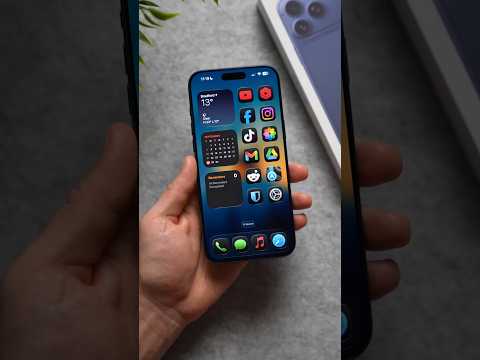
For those looking to maximize Smart AI Fix principles, consider using invisible characters for the name field to create a strictly icon-based, distraction-free interface. Furthermore, you can set these shortcuts to trigger different apps based on Focus Modes or Time of Day, pushing your iPhone closer to a context-aware, AI-enhanced tool.
