
Optimizing the Samsung One UI interface involves reducing the friction between data capture and information processing. While the traditional hardware button combination (Power + Volume Down) remains functional, integrating a dedicated Take Screenshot button into the Quick Settings panel enhances one-handed usability and preserves hardware longevity. This adjustment is a foundational step for users leveraging mobile AI tools that require rapid screen captures for OCR (Optical Character Recognition) or visual analysis.
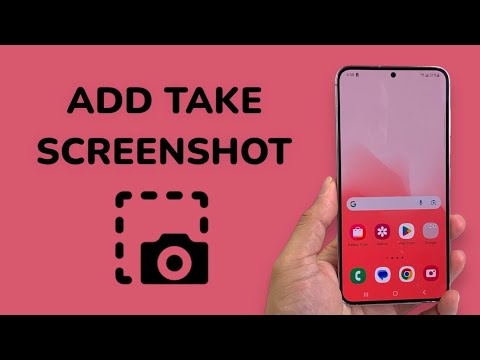
Step-by-Step Guide: Adding the Take Screenshot Button
To customize your Quick Settings panel on a Samsung Galaxy device running One UI 6.0 or higher, follow these technical steps:
1. Expand the Panel: Swipe down twice from the top of your screen to fully reveal the Quick Settings layout.
2. Enter Edit Mode: Tap the Pencil icon located at the top right of the screen. On older versions of One UI, you may need to tap the three-dot menu icon and select "Edit buttons."
3. Select the Edit Scope: Choose whether you want to edit the Top (the first six toggles) or the Full expanded menu. For maximum efficiency, adding it to the Top is recommended.
4. Locate the Toggle: Scroll through the "Available buttons" section at the bottom. Find the icon labeled Take Screenshot.
5. Reposition the Icon: Long-press the Take Screenshot icon and drag it into your active grid. Place it in the first two rows for immediate access without additional swiping.
6. Finalize: Tap Done to save your configuration.
Advanced Workflow Integration

In the context of software automation, having a software-based screenshot trigger allows for cleaner captures, especially when using screen recording software or performing remote troubleshooting. By bypassing physical buttons, users can maintain a steady grip on the device, which is essential for capturing precise frames of dynamic AI-generated content or live data streams. Furthermore, this button works seamlessly with Samsung’s Smart Select and Circle to Search AI features, creating a comprehensive ecosystem for digital information management.
AI Implementation Score
This table evaluates how this manual software adjustment impacts overall AI-driven productivity on Samsung devices.
| Metric | Score (1-10) | Technical Reasoning |
|---|---|---|
| Ease of Implementation | 10 | Native OS feature requiring no third-party APKs or root access. |
| Workflow Automation | 8 | Reduces physical movement; facilitates faster input for AI visual processing. |
| Accessibility Improvement | 9 | Essential for users with limited motor skills or hardware failures. |
| System Stability | 10 | Zero impact on RAM or CPU overhead compared to background apps. |
By repositioning the Take Screenshot function, you are not merely moving a button; you are reconfiguring your mobile workstation to better serve a high-velocity, data-driven environment. This small shift in UI layout significantly contributes to a more streamlined and automated digital life.
