
The launch of the iPhone 16 series—encompassing the 16, 16 Pro, and 16 Pro Max—marks a pivotal shift in how users interact with Apple’s ecosystem, primarily driven by the integration of Apple Intelligence. Activating Siri is no longer just about voice commands; it is about initializing a context-aware AI orchestrator designed to streamline your digital workflow. Whether you are migrating from an older device or setting up your new flagship for the first time, configuring the "Siri" or "Hey Siri" trigger is the first step toward true automation efficiency.

Enabling Voice Triggers: "Siri" or "Hey Siri"
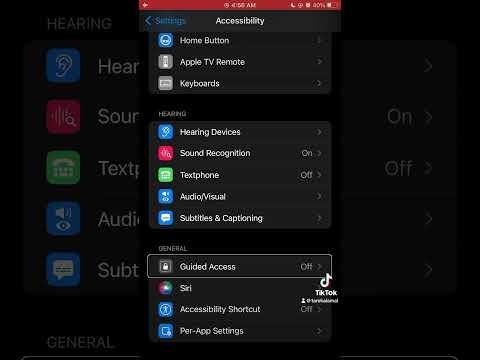
With the latest iteration of iOS on the iPhone 16, Apple has refined the acoustic models used for voice recognition. To activate the hands-free trigger, follow these precise technical steps:
1. Navigate to Settings on your iPhone 16.
2. Scroll down and select Siri & Search.
3. Tap on Listen for at the top of the menu.
4. You will see three options: "Off," "Hey Siri," or "Siri or Hey Siri." To maximize efficiency, select the latter. This allows the device’s Neural Engine to listen for the shorter "Siri" trigger, reducing the friction of interaction.
Once selected, the device will prompt you to complete a short voice calibration. This process ensures the A18 or A18 Pro chip creates a unique "voice print," preventing accidental activations from ambient noise or other speakers.
Hardware Activation: The Side Button and Action Button
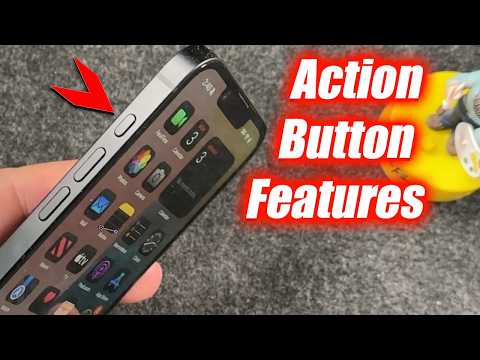
For professional users who prefer tactile feedback or need to trigger AI in loud environments, hardware activation remains a core feature. On the iPhone 16 series, you have two primary methods:
The Side Button: By default, long-pressing the button on the right side of the device will invoke Siri. Ensure this is enabled in Settings > Siri & Search > Press Side Button for Siri.
The Action Button: On the iPhone 16 Pro and Pro Max (and now the standard 16), the Action Button provides a customizable shortcut. Navigate to Settings > Action Button and swipe to Siri. You can configure this to launch the assistant, or better yet, use it to trigger a specific Shortcuts automation that involves Siri's processing capabilities.
Optimizing Siri for AI Efficiency
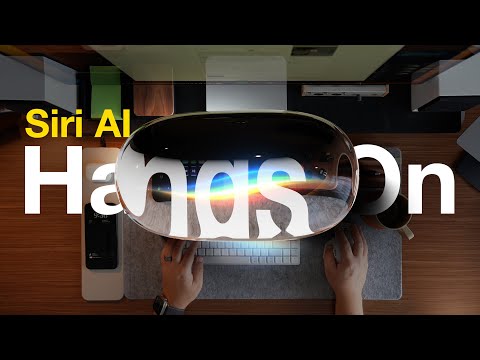
To truly leverage the iPhone 16’s hardware, you should enable "Type to Siri" and "Always Listen for 'Hey Siri'." Type to Siri is essential for office environments where voice commands are impractical. You can activate this in Settings > Accessibility > Siri > Type to Siri. This allows you to double-tap the bottom of the screen to bring up a keyboard interface for the AI.
Furthermore, ensure "Siri Responses" are set to "Prefer Spoken Responses" only when the phone is not on silent, maintaining a professional balance between automation and discretion.
AI Implementation Score
The following table evaluates the Siri integration on the iPhone 16 series based on its utility for power users and AI enthusiasts.
| Metric | Score (1-10) | Technical Note |
|---|---|---|
| Response Latency | 9.5 | On-device processing via A18 Pro NPU. |
| Voice Accuracy | 9.0 | Enhanced by the new studio-quality mic array. |
| Automation Depth | 8.5 | High synergy with Apple Shortcuts and HomeKit. |
| Contextual Awareness | 8.0 | Significant improvement with Apple Intelligence. |
Activating Siri on your iPhone 16 is the foundational step in building a personalized AI stack. By leveraging both the voice trigger and the Action Button, you position yourself to take full advantage of the upcoming software updates that will further integrate LLM-based capabilities into the native iOS experience.
